Zemam is a platform that helps a company keep track of three things it is legally and practically expected to manage well: the rules it must follow, the safeguards it has in place to follow them, and the risks that could still go wrong anyway. It uses AI to produce a fast first draft of that work, and it enforces a simple rule throughout: nothing an AI produces becomes official until a different, second person has looked at it and agreed.
This manual follows one fictional company, Meridian Gulf Holding, from the moment its account exists to a working, multi-person routine. Every screenshot was captured against the real, running application. Where this manual says an AI drafted something, an AI actually drafted it, seconds before the screenshot was taken; where it says a person approved something, that click actually happened.
How a company’s account actually gets created
A new customer never has to file a request or wait for someone else to set anything up. They sign in with an existing work account (Google or Microsoft/LinkedIn), and the system builds their private company space automatically, in the same moment — one sample company record, one person with full access (the person who just signed in), and a handful of realistic starter examples, so the very first screen is never a blank, empty one. That starter content is not a special demo — it is the same small example every real, brand-new customer gets, meant to be replaced with the real company’s own information within the first hour or two of use.
Meridian Gulf Holding’s account was created exactly this way, under Rania Al-Fahad. The chapters below show, step by step, exactly what she — and five colleagues she then adds — did next, and why each step matters to the business.
The cast
| Name | Job | What they do | |
|---|---|---|---|
| Rania Al-Fahad | Holding admin | rania@meridian-gulf.test | Sets up the company structure, the applicable rules, and the team |
| Layla Hassan | Governance officer | layla@meridian-gulf.test | The board, committees, policies and spending-authority limits |
| Omar Al-Sabti | Auditor | omar@meridian-gulf.test | Independent, read-only assurance across every record |
| Maha Al-Zahrani | Reviewer | maha@meridian-gulf.test | Makes the final human call on every AI-drafted item |
| Sara Al-Qahtani | Library steward | sara@meridian-gulf.test | Shares proven, already-approved work with other companies |
| Youssef Nasser | Member | youssef@meridian-gulf.test | Does everyday work inside one part of the business |
Every account above signs in with the same shared starting password — the ordinary way a small team works together before each person is given their own, individual sign-in.
Chapter 1 — Holding Admin: Standing Up Meridian Gulf
Rania Al-Fahad is the person opening the front door on day one. Think of her as the owner of the company’s account: everything in this chapter turns a brand-new, empty account into a working, accurate picture of the real company — its structure, the rules it has to follow, its people, and its first safeguards. Nobody else can do any of the later chapters until this one is done.
1Signing in and seeing where you’re starting from
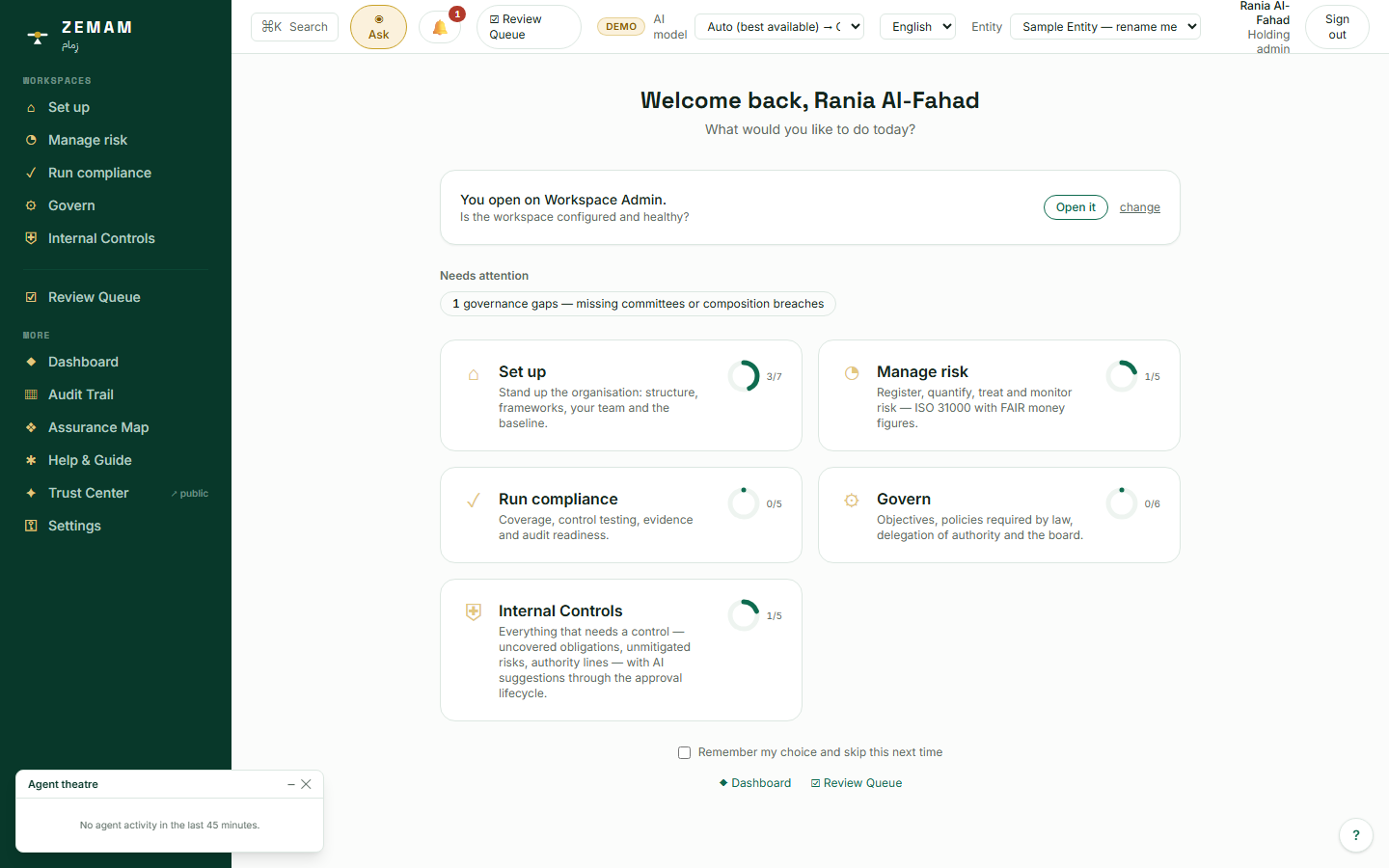
A company only starts being able to show a regulator, a bank, or its own board that it manages risk properly once its account actually holds real information — every day spent on setup before that is a day without a documented control record to point to. Signing in with a work account the company already uses, and finding a small working example rather than a blank screen, means there is already something to edit rather than something to build from nothing, and the progress rings make it possible to see, without asking anyone, exactly how much of the initial setup is still open.
- Sign in with a Google or Microsoft/LinkedIn work account — no separate password to invent or remember.
- The system automatically creates a private, secure space for the company that only its own people will ever be able to see.
- That space already contains a handful of realistic examples — one sample safeguard, one sample rule, one sample risk — so nothing looks empty or intimidating.
- The home screen shows five areas of work, each with a small progress ring, so it is obvious at a glance what is already done and what is still open.
Everything that happens for the rest of this manual — every chapter, every person, every screen — happens inside this one private space. Nothing typed here is ever visible to another company, and nothing from another company is ever visible here.
No AI runs in this step — it is a direct human action.
2Giving the company its real name and details
Every rule, safeguard and template the system later suggests is driven by three facts recorded here: which country the company is legally registered in, what industry it operates in, and whether it is publicly listed. The sample company is deliberately called "Sample Entity — rename me" so it cannot be mistaken for real information; leaving it in place, or getting the country or industry wrong, means every later suggestion is built on the wrong foundation — a mistake that often is not caught until an auditor or a regulator asks a question the system cannot answer correctly.
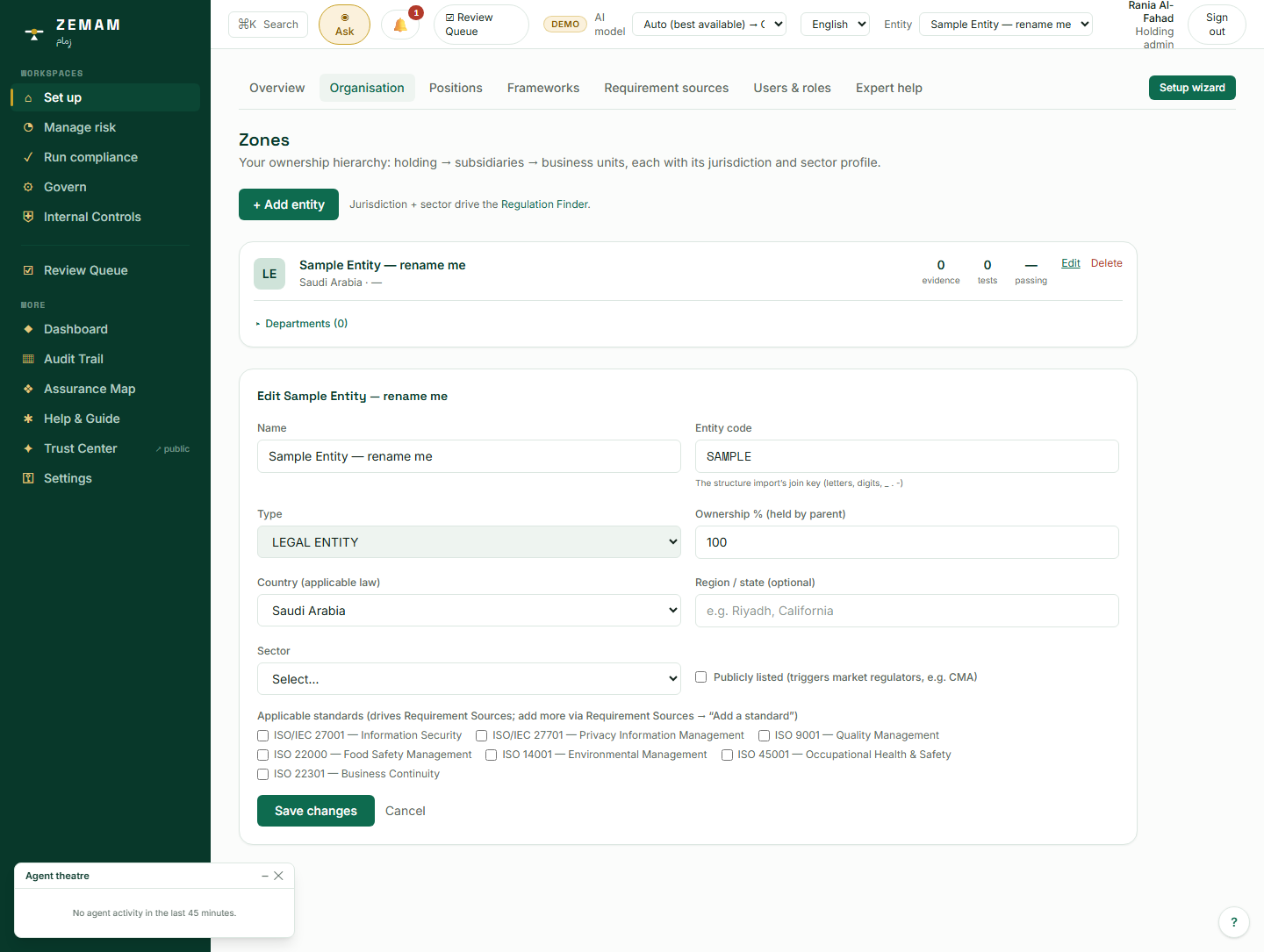
- Open the Organisation screen and click Edit on the sample company.
- Replace the placeholder name with the company’s real, legal name.
- Give it a short internal code (used later when importing spreadsheets, so the system can match rows to the right company without any guesswork).
- Pick its country — this decides whose laws apply — and its industry, which narrows down which rules are even relevant.
- Save. The change appears everywhere instantly, including the small company-picker at the top of every screen.
This is arguably the single most important step in the whole setup, because the country and industry recorded here quietly drive several later decisions: which regulations get suggested, which safeguards make sense, and later, which board and committee rules apply.
No AI runs in this step — it is a direct human action.
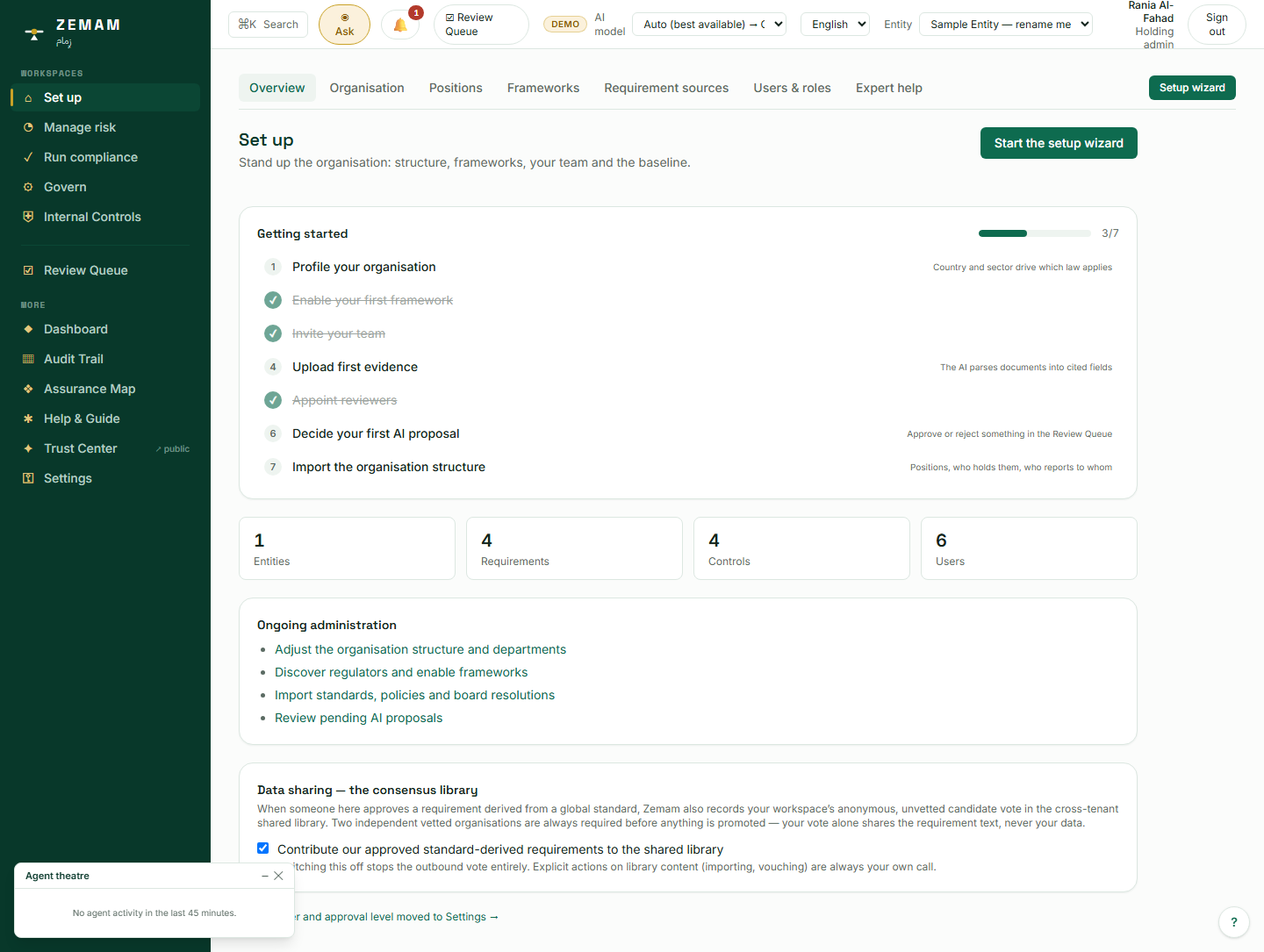
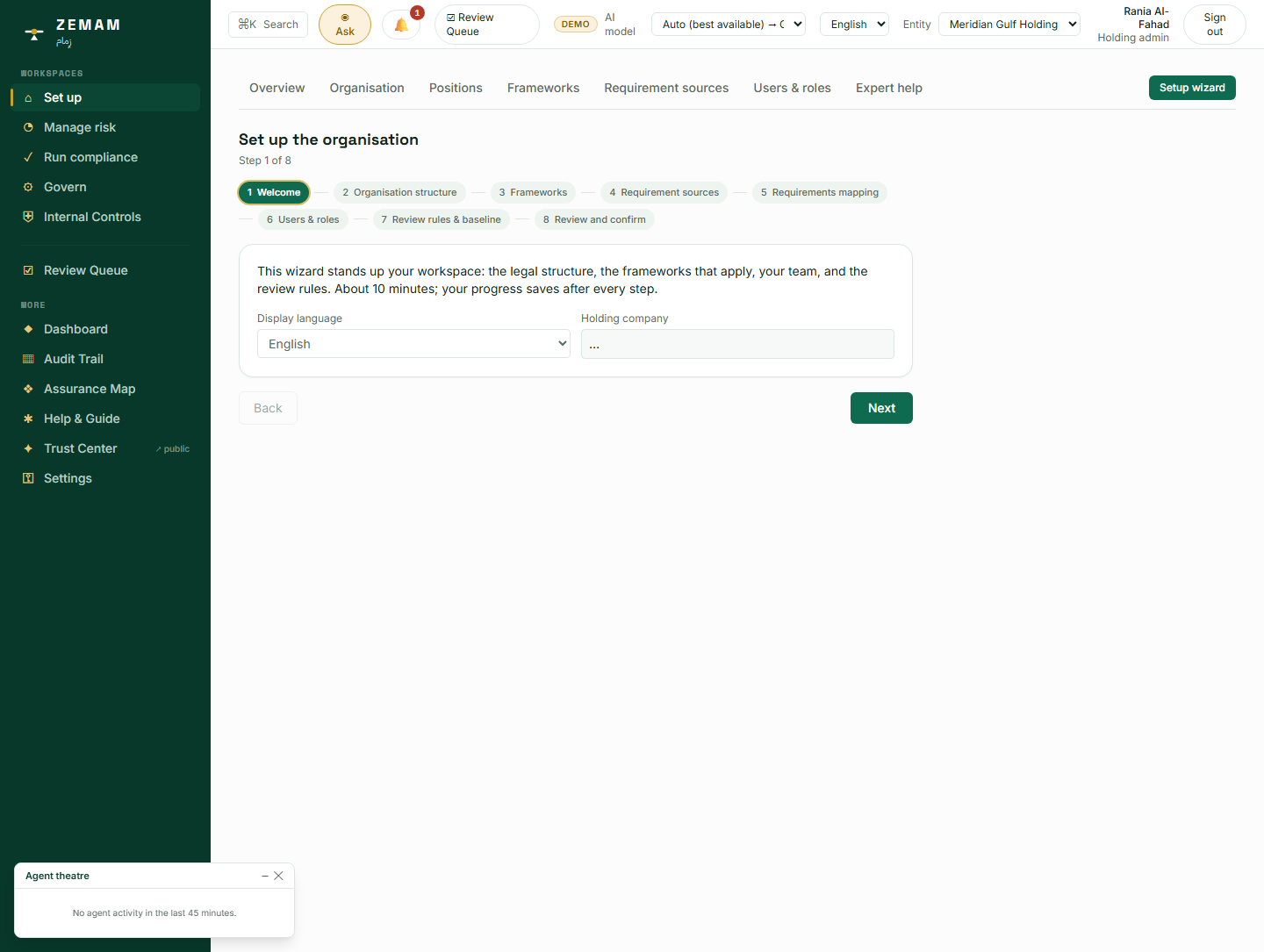
With the company correctly named, Rania ran the guided setup checklist — an eight-part guided sequence that, step by step, builds the group’s structure, switches on the rules that actually apply, brings in supporting documents, lets the AI draft a first version of the detailed rules, adds the rest of the team, and gives everything one last look before any of it becomes official.
3Mapping out every company in the group
A holding company is legally and financially responsible for its subsidiaries, and different countries mean different laws apply to different parts of the same group. Getting the ownership structure wrong here — attaching a business unit to the wrong parent, or leaving an entity out altogether — means the wrong rules end up applied to the wrong part of the business, and responsibility for a risk or a finding gets assigned to the wrong company. This is also the structure a bank, an investor or a regulator expects to match the company’s own legal registration exactly.
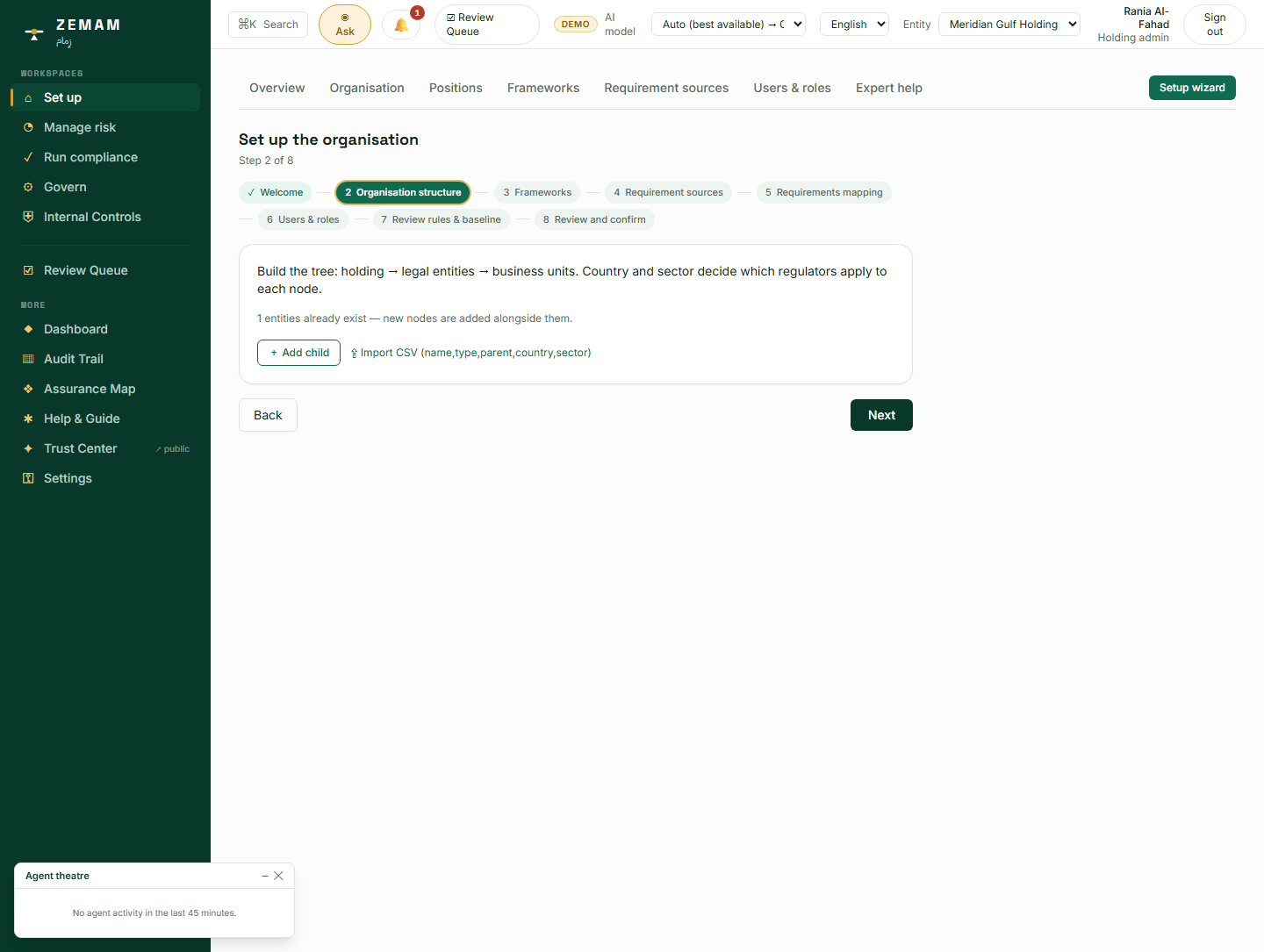
- Open the guided setup checklist and reach the "organisation structure" step.
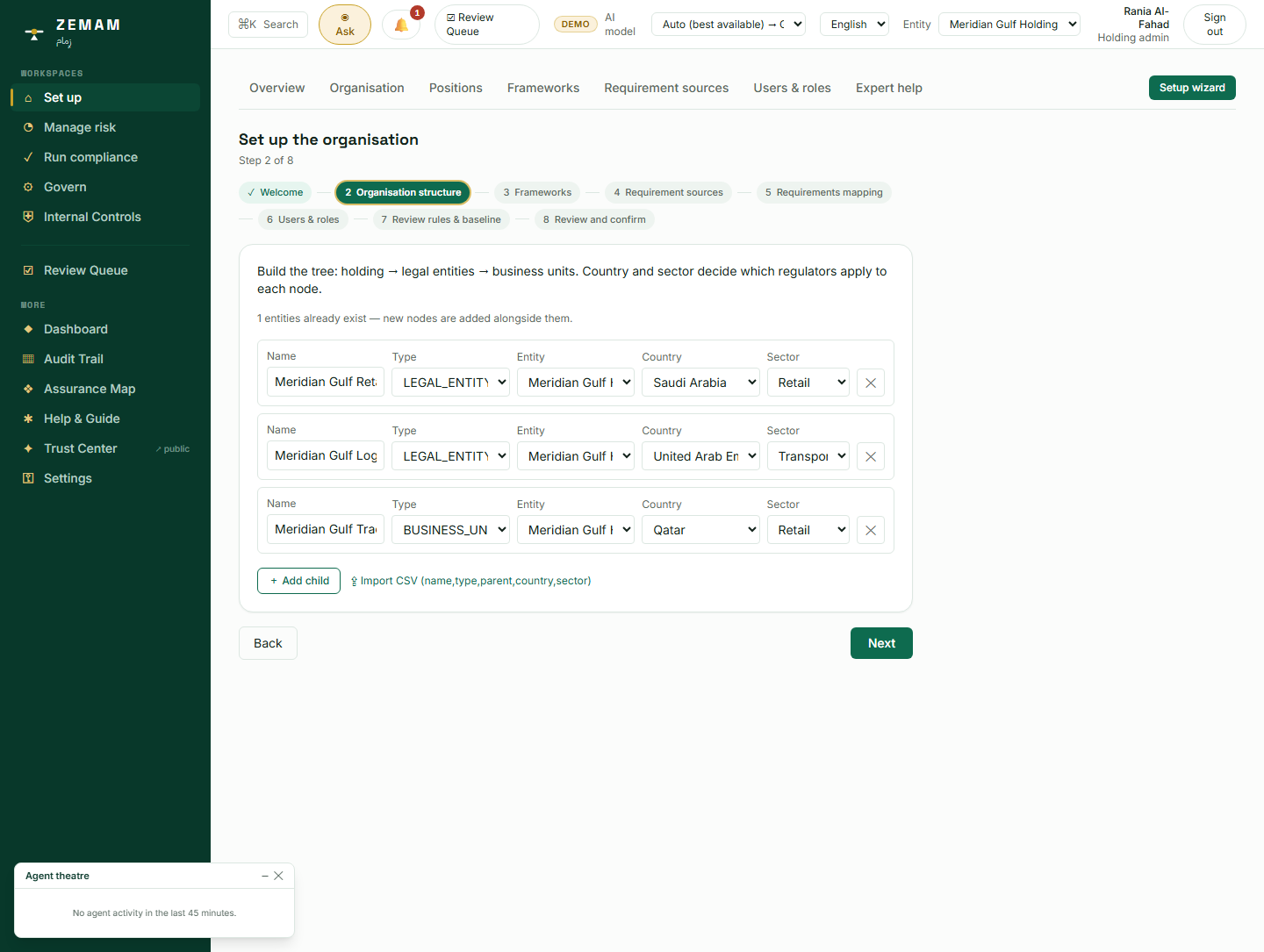
- Add each company by hand — name, type (subsidiary or business unit), which company it reports up to, country, industry — or,
- For a group of any real size, upload a simple spreadsheet listing all of them at once, and let the system build the whole tree automatically.
- The system checks the parent references itself, so a business unit correctly nests under its own subsidiary rather than jumping straight to the top of the group.
This structure feeds directly into three later things: which rules get suggested for each company (the next step), who is ultimately responsible for each company (covered in "positions", later in this chapter), and which company any future safeguard, rule or risk gets attached to.
No AI reads or interprets the spreadsheet here. Importing the structure is a straightforward, deterministic parse of rows and columns, and the parent-reference check that follows it is ordinary code checking that the tree makes sense — not an AI judging it.
4Switching on the rules that actually apply to you
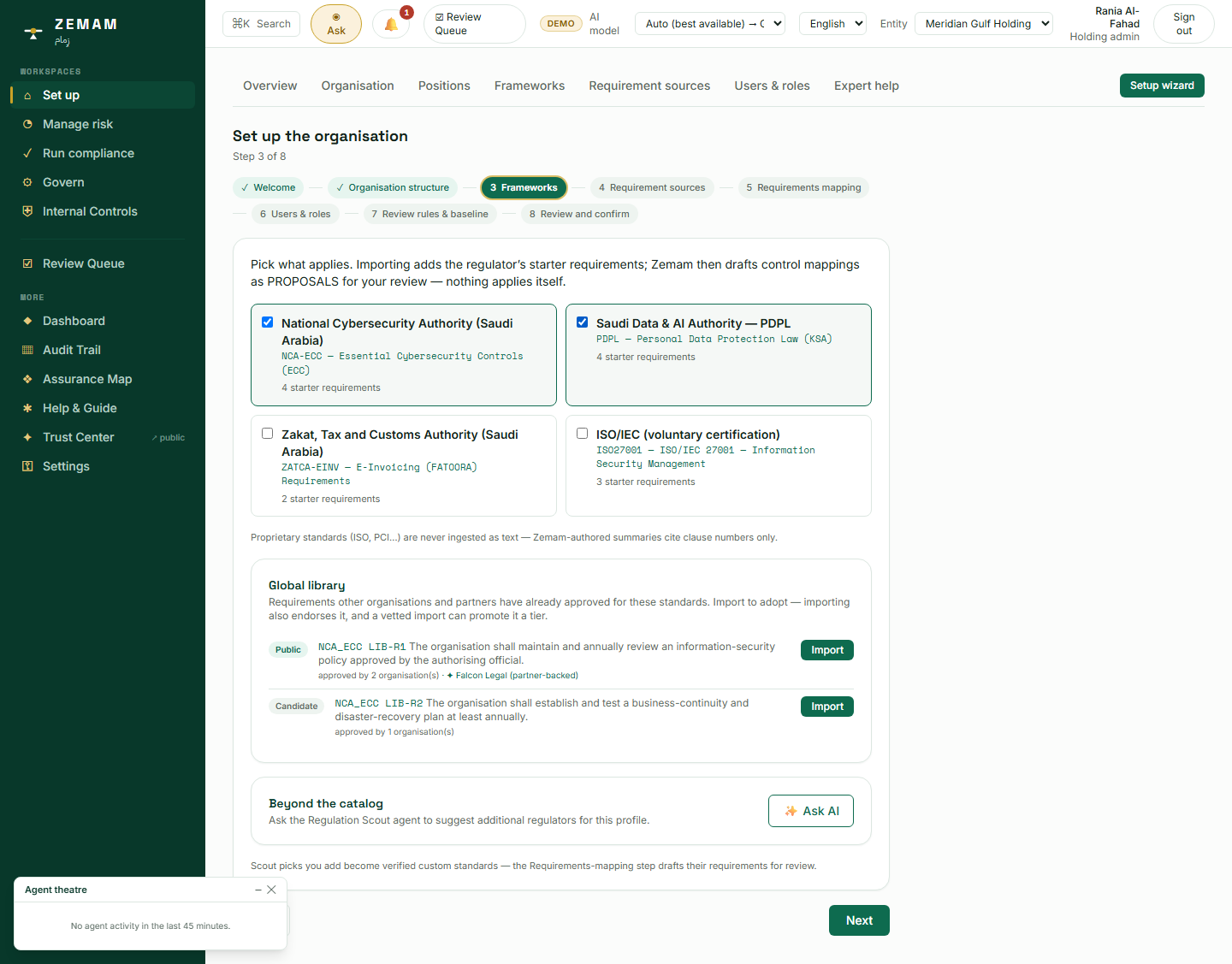
Missing a regulation that genuinely applies is a real business exposure — a fine, a breached licence condition, or a finding an auditor raises that the board has to explain. Chasing down every regulation that might conceivably apply, on the other hand, wastes real time on rules the company was never actually subject to. Matching the country, industry and listing status recorded in the previous steps against a maintained list of regulators narrows that down to the ones genuinely relevant, so the only real decision left for a person is confirming each match is right for their business.
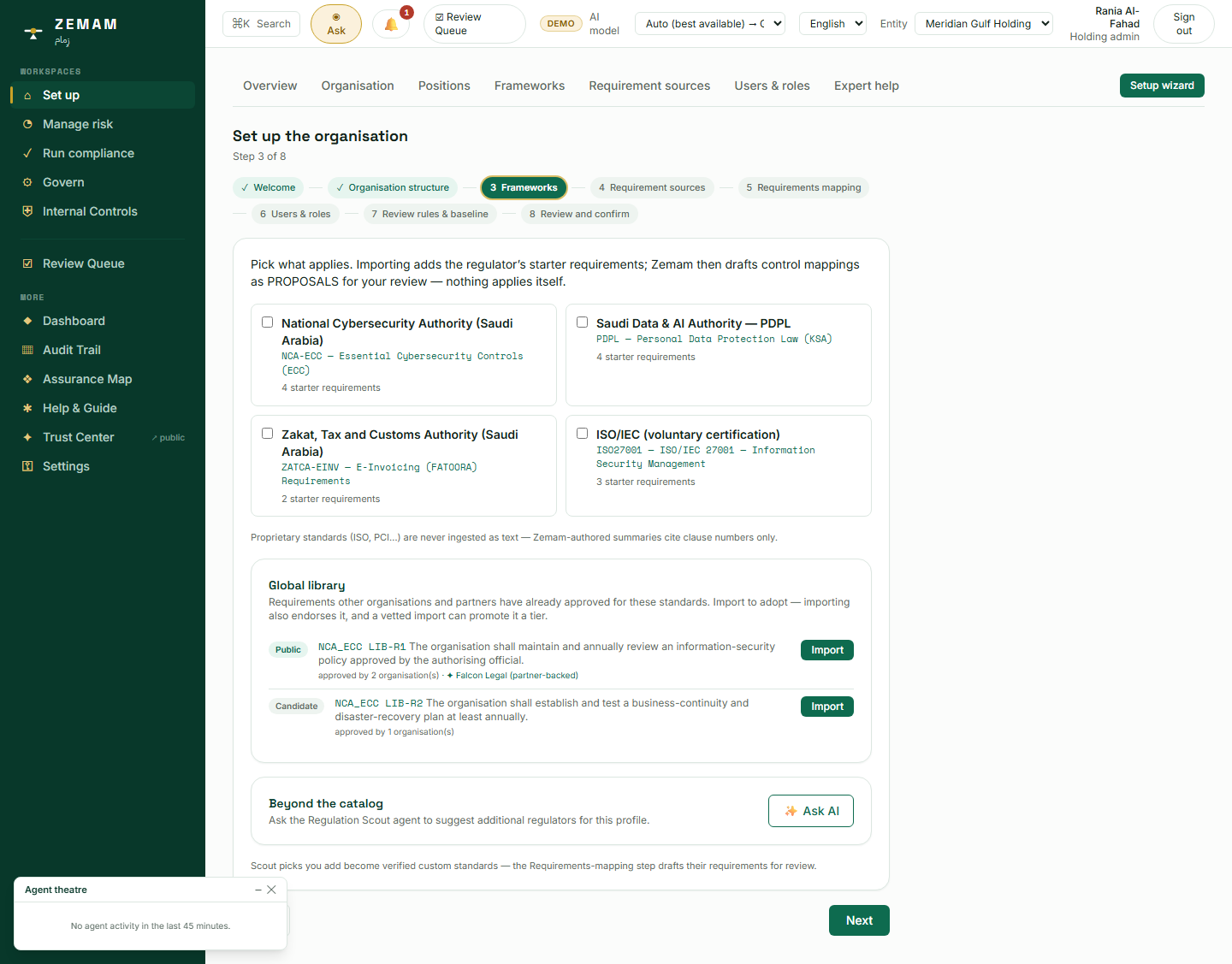
- Based on the country and industry entered earlier, the system already suggests the regulators and laws that are likely to apply.
- Tick the ones that genuinely do — for this company, the country’s cyber-security authority and its data-protection law.
- Each one that gets switched on brings a small starter set of specific, individual rules along with it automatically.
- Anything already switched on earlier shows as done and cannot be accidentally duplicated.
Turning one of these on is what actually creates entries in the company’s "rules to follow" list, and — a couple of steps later — triggers the very first suggestions for which existing safeguards already satisfy each one.
This step deliberately runs no AI. Matching a country, industry and listing status against a maintained list of regulators is a precise, rules-based lookup with one correct answer — not a judgement call an AI would improve on. The judgement that does belong to a person here is confirming that a suggested regulator is genuinely right for their business before switching it on — naming a regulator the list does not already know about is a different action, and it does use AI (the next step shows it).
5Bringing in your own documents, or simply naming a standard
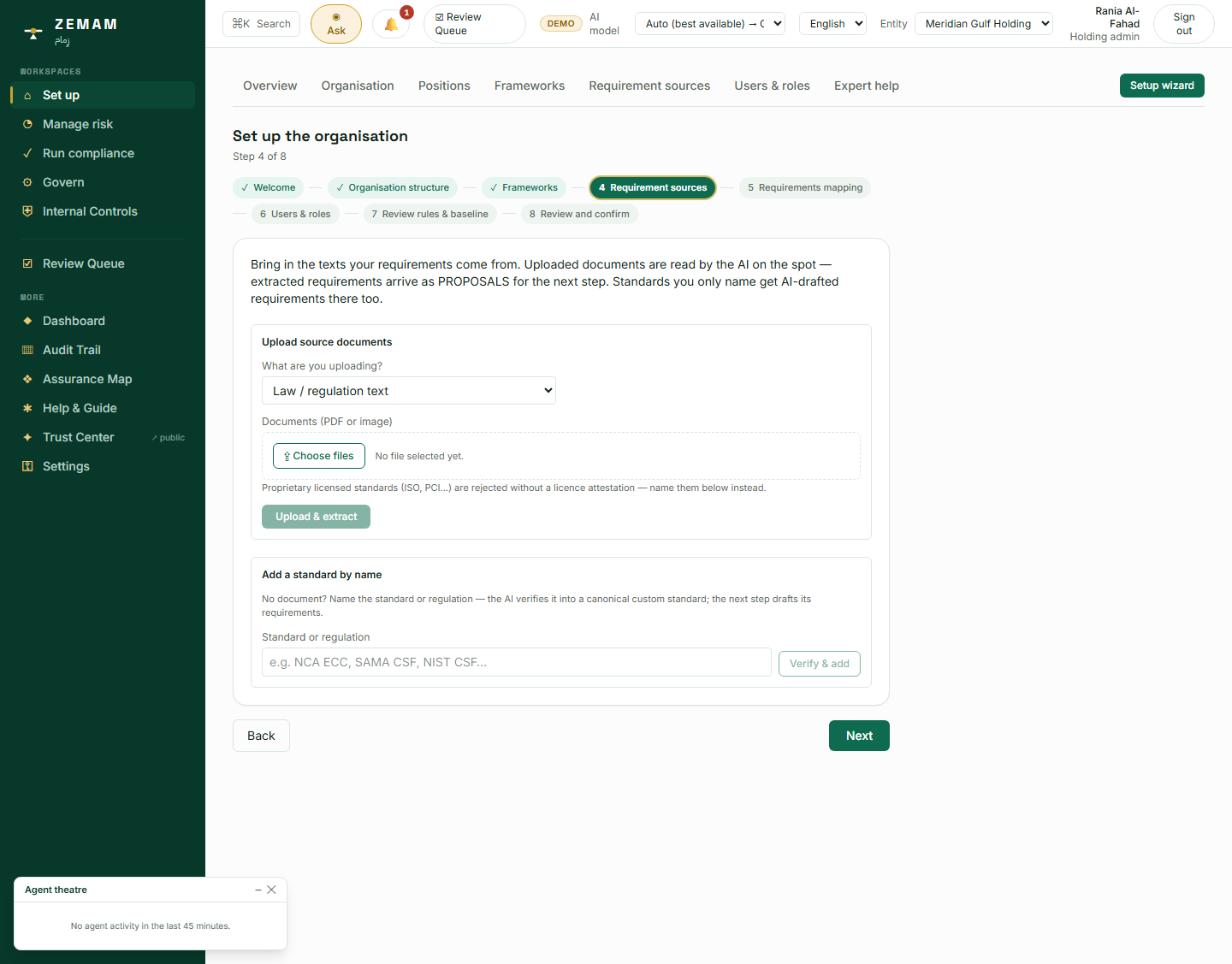
Plenty of the rules a company actually has to follow do not come from a well-known regulator with a ready-made template — they come from a specific contract, an internal policy the company adopted voluntarily, or a certification a customer or bank requires proof of. If bringing those in were harder than switching on a well-known regulator, they would tend to get skipped, and the company would end up formally managing only the easy, well-known rules while a real — sometimes more urgent — obligation went untracked.
- Either upload the actual document — a PDF or a scanned image of the law or standard — and let the system read it, or
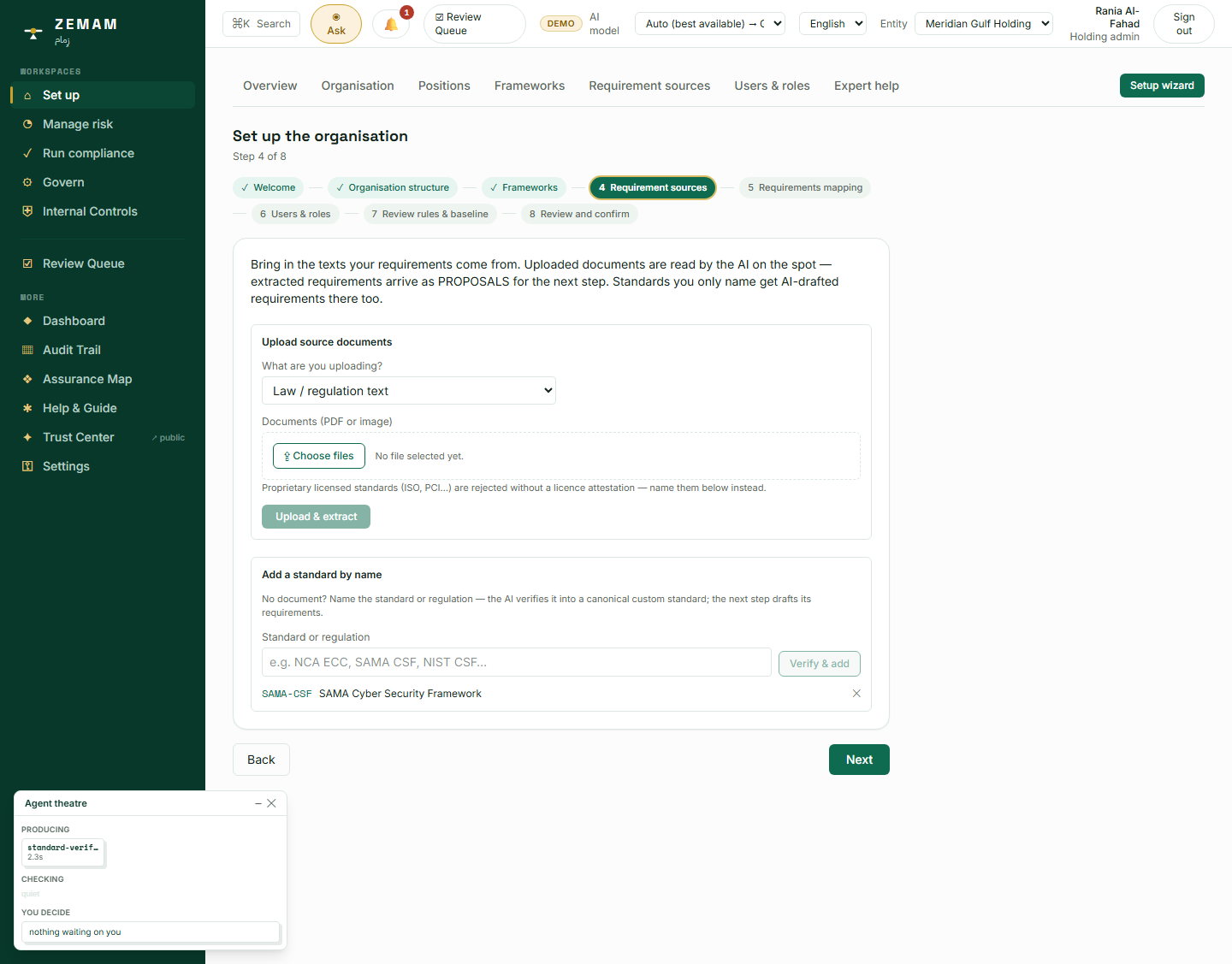
- Simply type the name of a standard or regulation, even if you don’t have a copy of the text, and let the system confirm it is a real, specific, recognised one before accepting it.
This step feeds the very next one directly: every rule the system goes on to draft has to say exactly where it came from, and this is where that "where" gets established for the first time.
This is one of the moments the AI is doing real, visible work. When a standard is simply named, an AI checks that it is a real, specific standard (not a vague guess), gives it a proper reference, and — as the screenshot shows — this literally runs as a short, visible process taking about two seconds, the same cost and the same wait a live customer would see. When a document is uploaded instead, an AI reads it and pulls out the individual rules one by one, each tied back to the exact page or clause it came from.
6Letting the AI write a first draft — and why nothing is final yet
Turning a lengthy regulation or standard into individual, checkable rules by hand is slow, repetitive work, and doing it manually for the first time is exactly the moment something is most likely to be missed or misread. Producing a complete first draft automatically removes that transcription risk and the delay that comes with it — provided the result is never treated as final until a second, independent person has actually checked it. That second check is not a formality: it is what stops a mistaken or incomplete AI draft from silently becoming an official rule the company is now expected to follow.
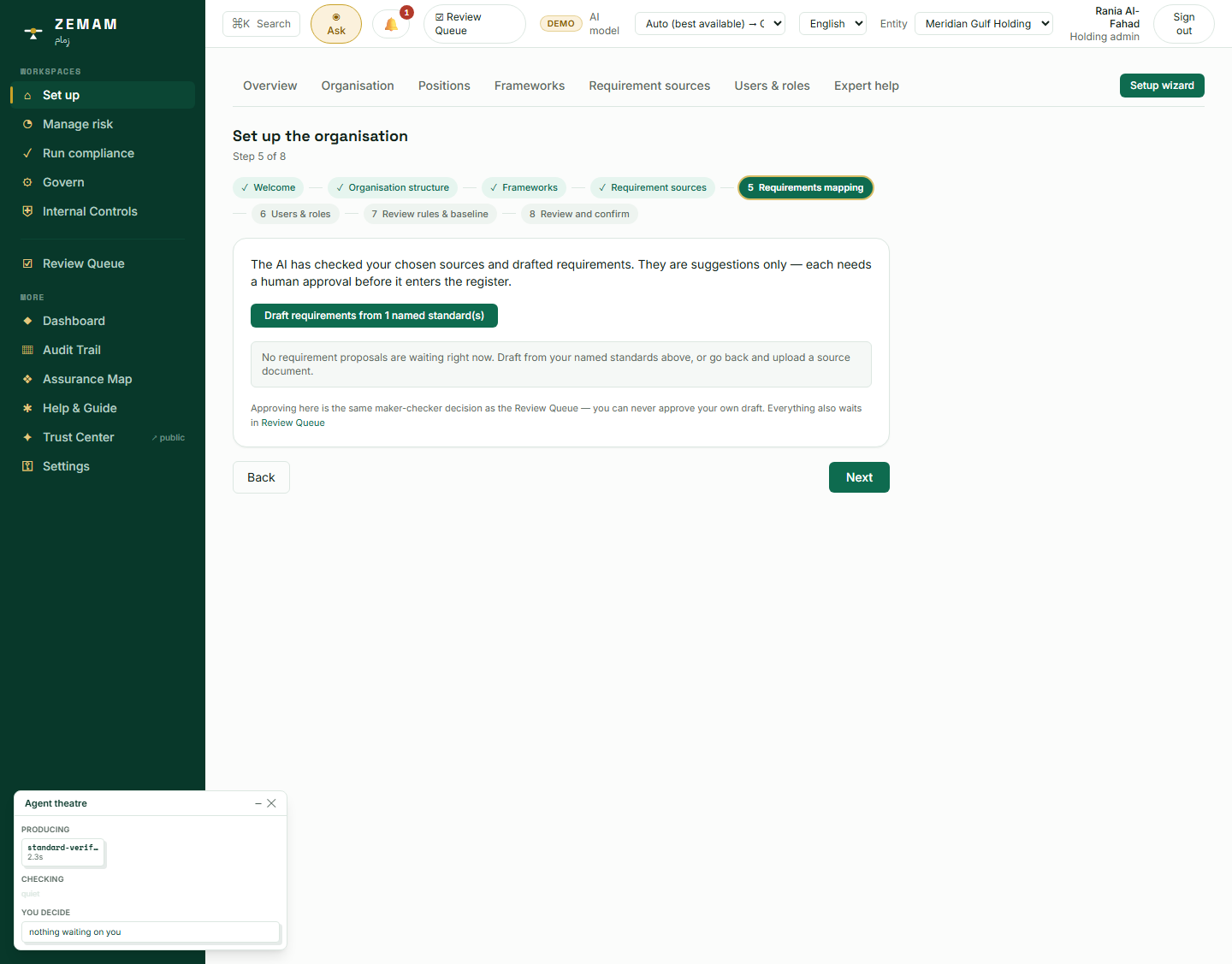
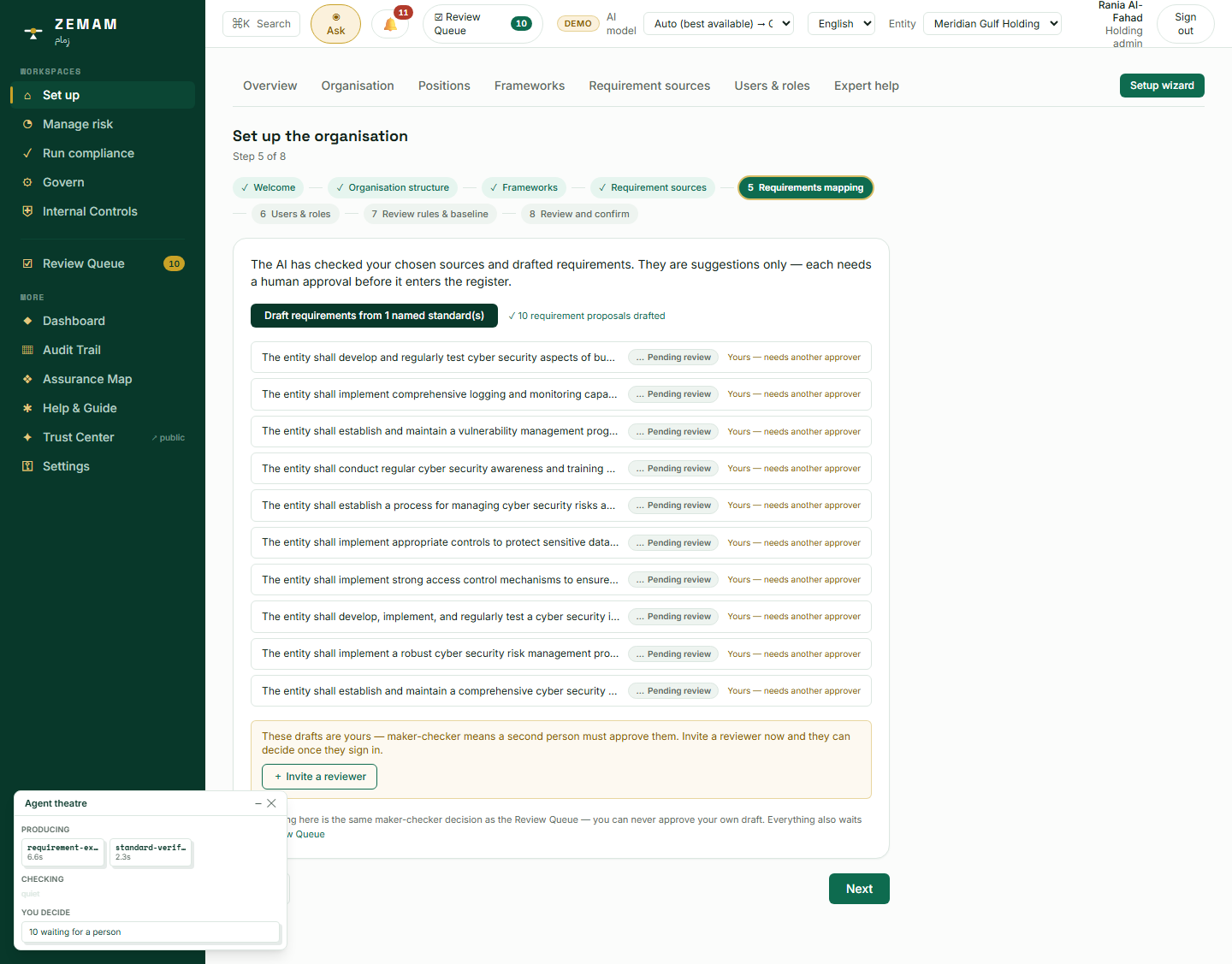
- Click one button to ask the system to draft the individual rules behind the standard just named.
- Wait a few seconds while the AI reads and works through the material.
- Every single rule it proposes arrives already marked "pending review" — waiting on a person — and is explicitly labelled as needing someone OTHER than whoever clicked the button.
Think of it like an expense claim: the person who submits it is never the person who approves it. Every drafted rule lands in one shared "things waiting for a decision" list used by the whole company (this is explained fully in Chapter 4) — and until a second person approves it, it does not count as an official rule anywhere else in the system.
This step IS the AI at work. It reads the source text and proposes each individual rule in plain language, together with a short note explaining its reasoning and a link back to the exact place in the source it found it — eleven separate rules were produced this way, from one framework, in about ten seconds.
7Adding the rest of the team
A single person holding every kind of access is itself a risk a bank, an insurer or an auditor will flag — among other things, it means nobody is actually checking anybody’s work. Giving each colleague a specific job, rather than the same broad access to everyone, is what makes the two-person check in step 8 possible at all, and it limits what any one account can see or change to only what that person’s actual job requires.
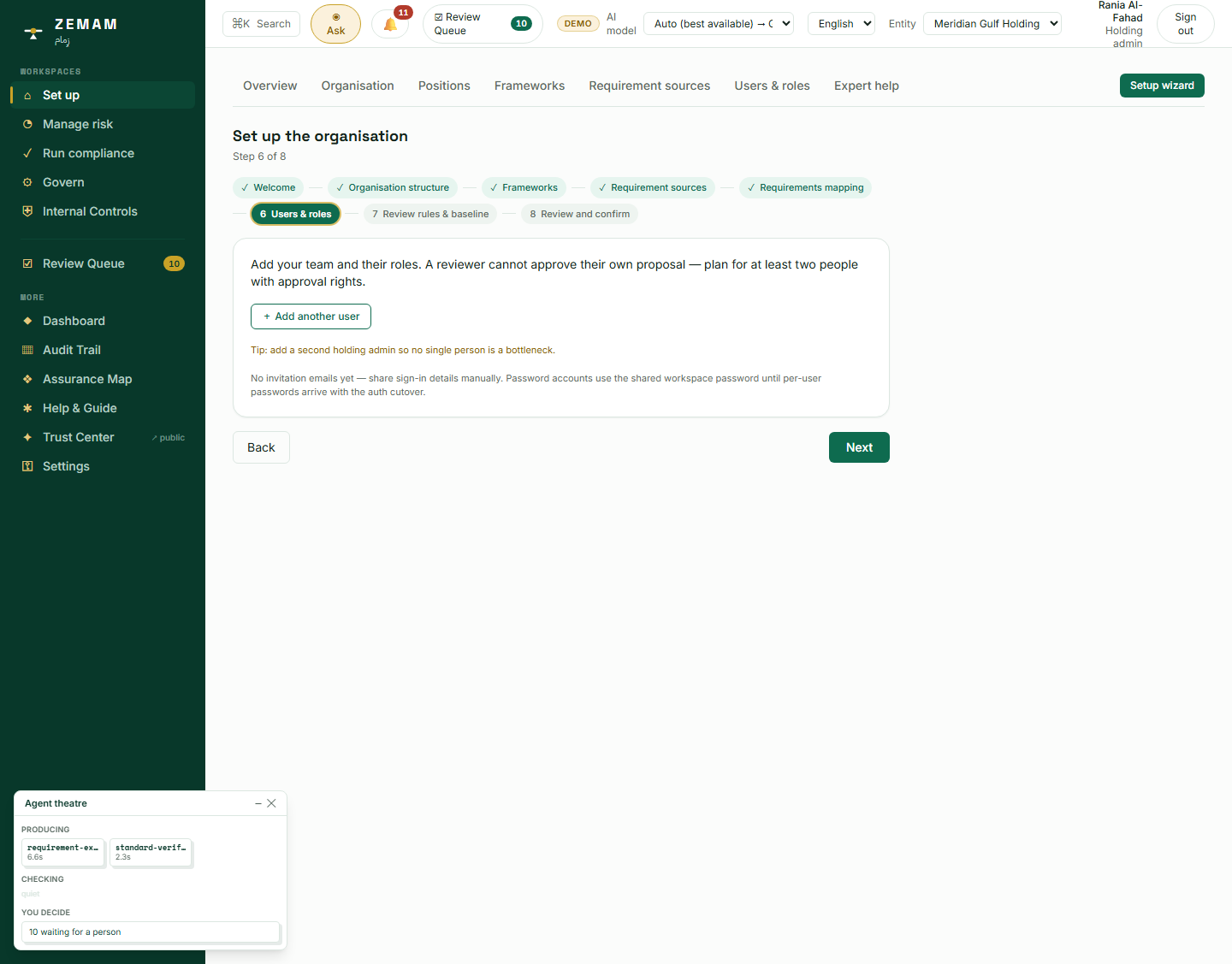
- For each colleague, type their work email and their name.
- Pick what job they do at the company — this single choice decides exactly what they will and will not be able to see or change everywhere else in the system.
- This can all be done right inside the same guided checklist, so nobody has to remember to circle back and do it separately later.
Everyone added here immediately becomes a candidate to review the drafted rules from the step above, and their choice of job here is what the rest of this manual is actually about — five different colleagues, five different views of the exact same company.
No AI runs in this step — it is a direct human action.
8Understanding — not choosing — the approval rules
When a board member, an outside auditor or a regulator asks who approved a decision and who checked it, the answer needs to be verifiable, not just asserted. Making this rule fixed — rather than something any one user could switch off on a given day — is what makes that answer trustworthy: nobody inside the company, including its most senior user, can quietly lower the bar for a decision they would rather approve alone.
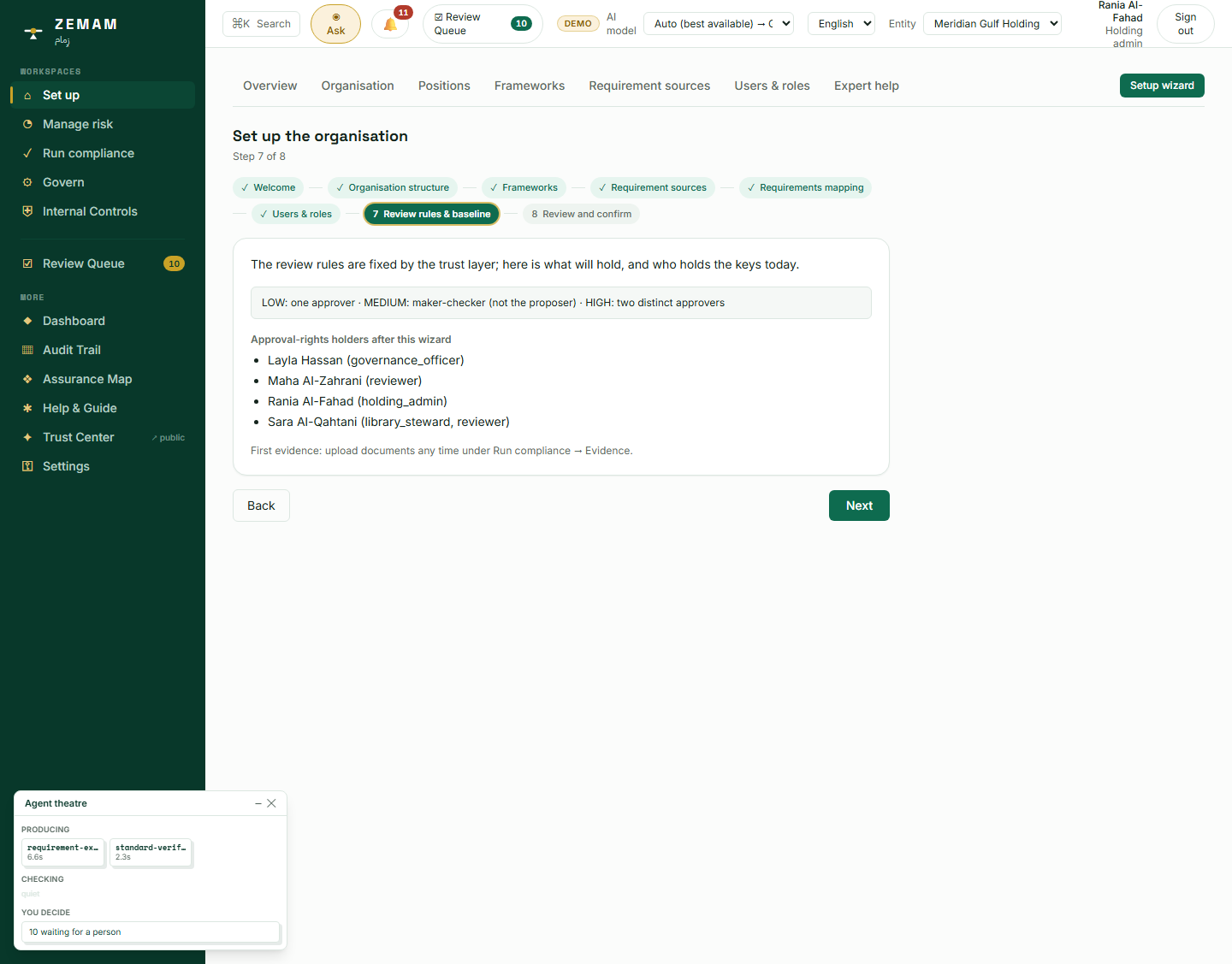
This step is read-only by design. It simply states the fixed rule — ordinary items need one approver, sensitive ones need a genuine second person to check the first person’s work, and the most sensitive items need two DIFFERENT people to sign off, not just one person twice — and lists who currently qualifies to approve.
This is the exact same rule enforced everywhere in the system — rules, safeguards, risks, board decisions — not something set differently screen by screen. Chapter 4 shows this rule being applied for real.
No AI runs here. This screen states a fixed rule the company cannot configure away, and a fixed rule is exactly the kind of thing that should never be left to an AI’s discretion either.
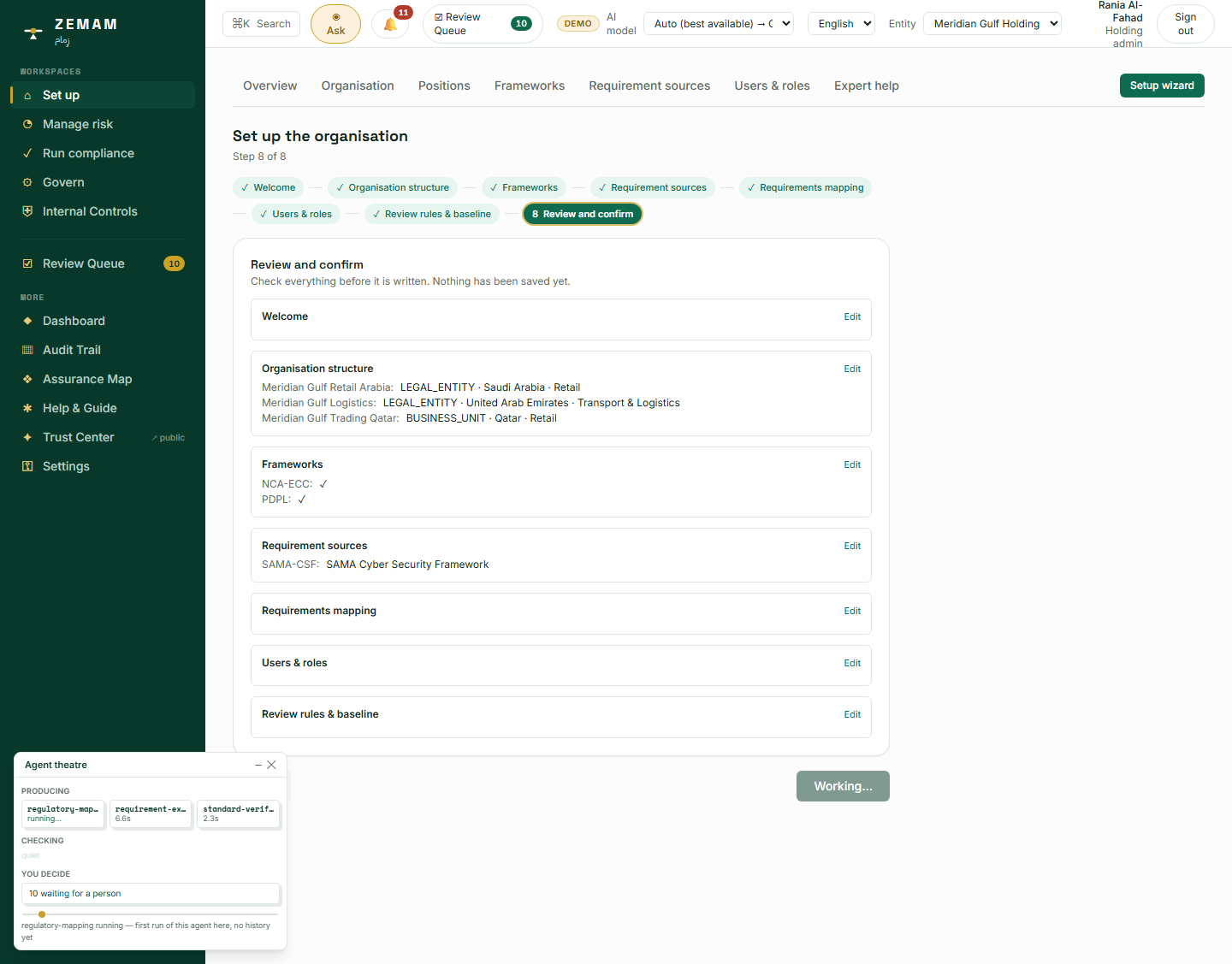
9One last look, then making it official
A single setup session can create several new companies, several new user accounts and a dozen new rules in one action — exactly the kind of bulk change that is hard to untangle later if something goes wrong partway through. A final review before anything is written, followed by a receipt that confirms each item individually rather than one generic success message, is what lets the person responsible actually verify what was created, item by item, instead of trusting that a single "success" covered everything correctly.
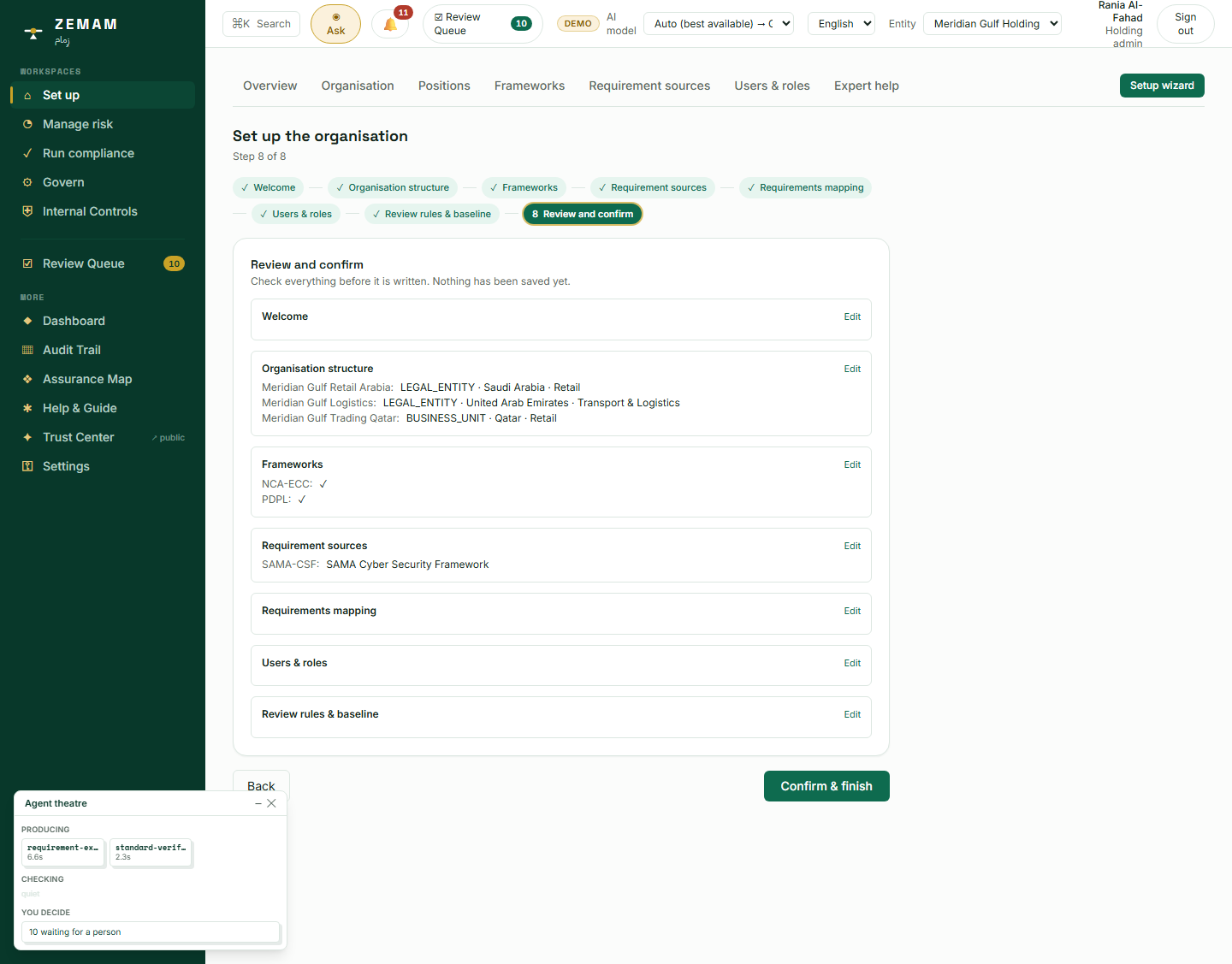
- Scroll through a plain-English summary of every section entered so far.
- Click the final "Confirm & finish" button.
- Wait a few seconds while the system creates everything for real.
- A checklist confirms each individual item — each company, each colleague — rather than one overall tick, so a problem with any single item would be named specifically rather than hidden inside a general failure.
This is the exact moment everything from the steps above stops being a draft inside this one checklist and becomes a real, permanent record used across the whole system — visible immediately on the organisation chart, the people list, the daily dashboard, and the queue of things awaiting review.
No AI runs at the point of confirming. Everything AI-assisted in this checklist already happened earlier, in step 6; this step only writes down, permanently, what a person has already reviewed on screen.
Checking the results
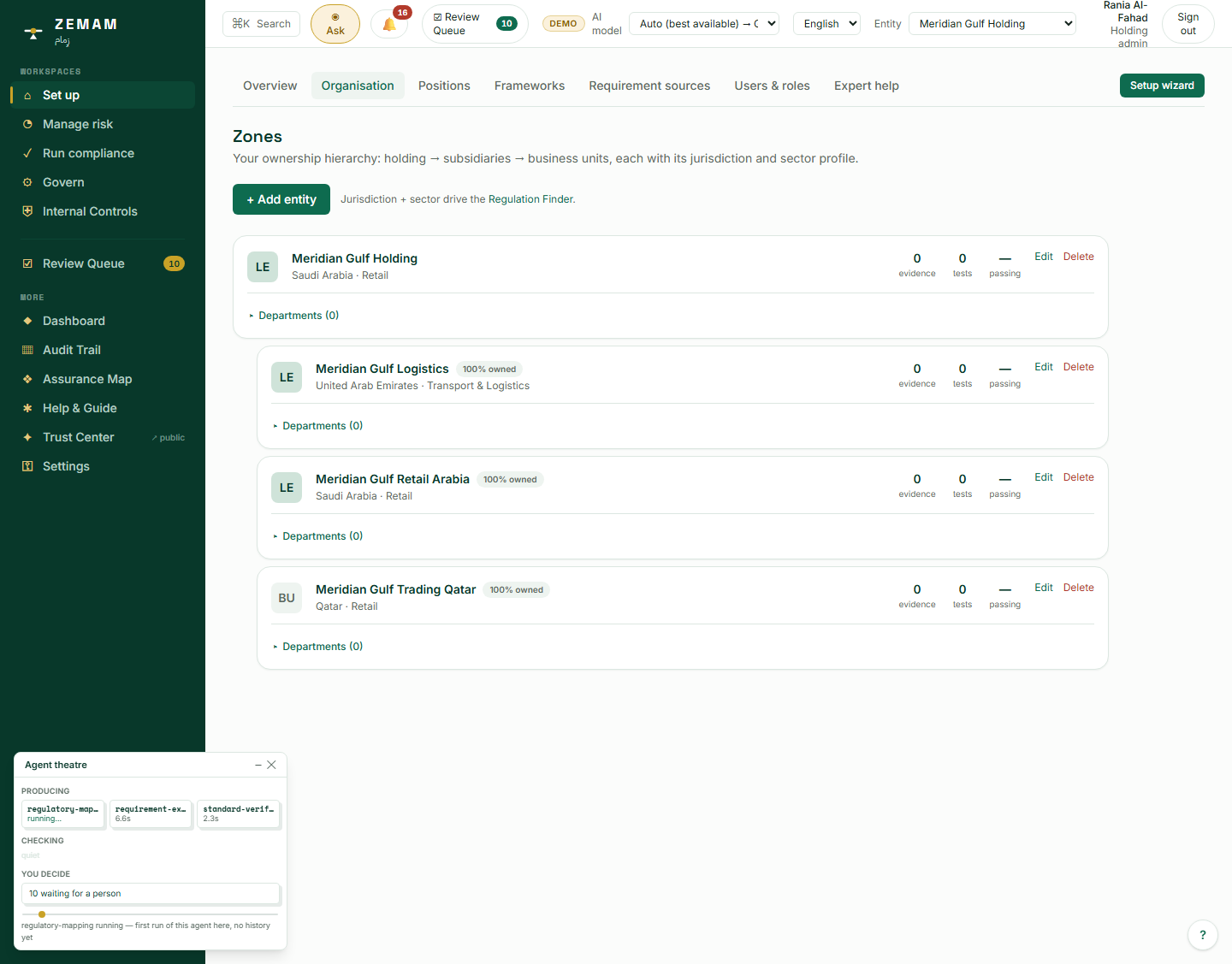
10Confirming the company structure looks right
An automated step is only as good as the result it actually produces, and the only way to know the company’s structure was captured correctly — rather than assumed to be correct — is for a person to look at it. This is the same check a manager would run after delegating any task: not redoing the work, just confirming it came out right before relying on it.
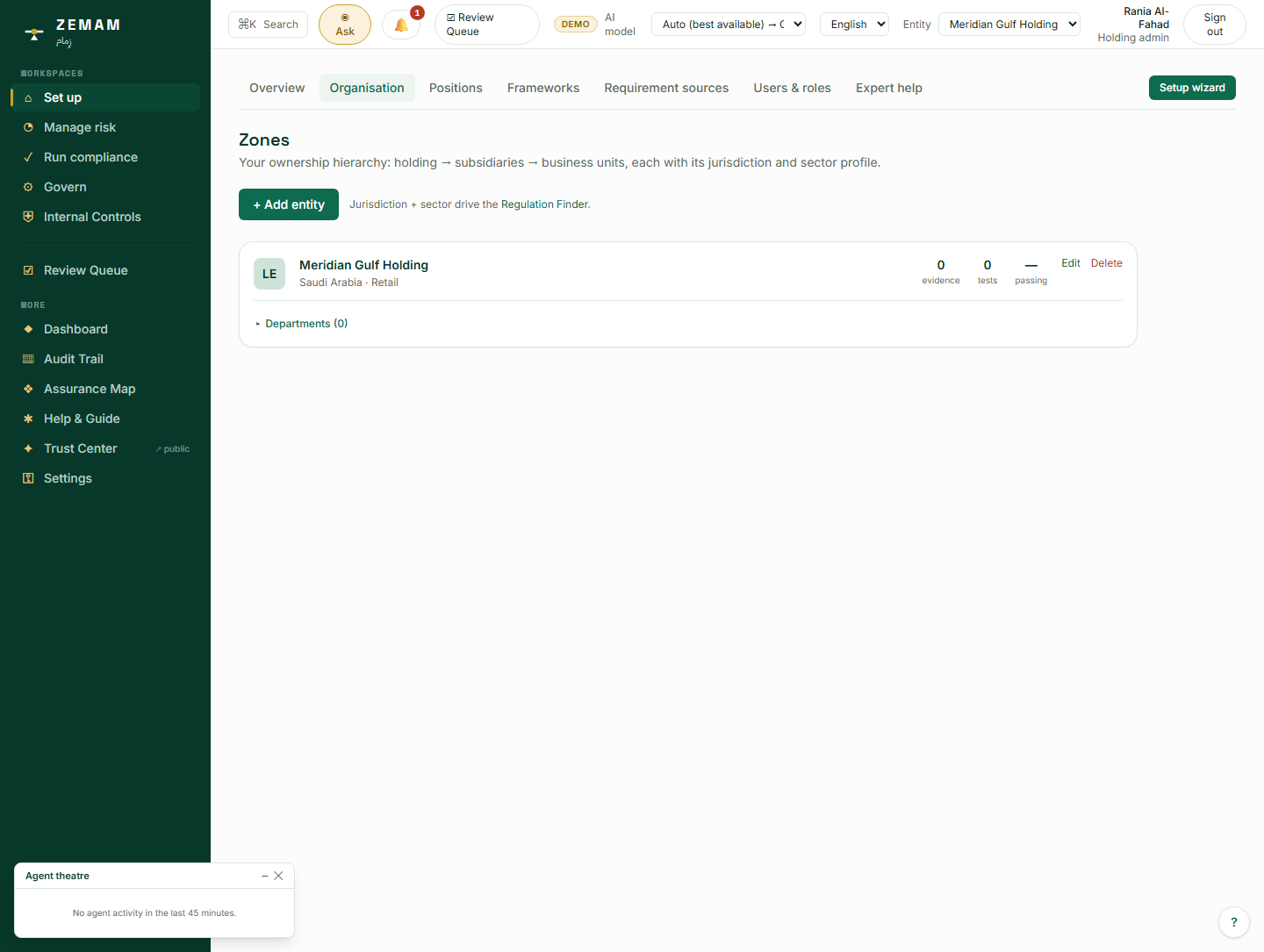
Open the Organisation screen again. All four companies should now be listed, each with its correct country, industry and ownership percentage.
Every screen elsewhere in the system that lets someone pick "which part of the company does this belong to" is reading directly from this same list.
No AI is involved in checking the result — this is a person visually confirming that an earlier step produced what was intended.
11Confirming everyone has the right job
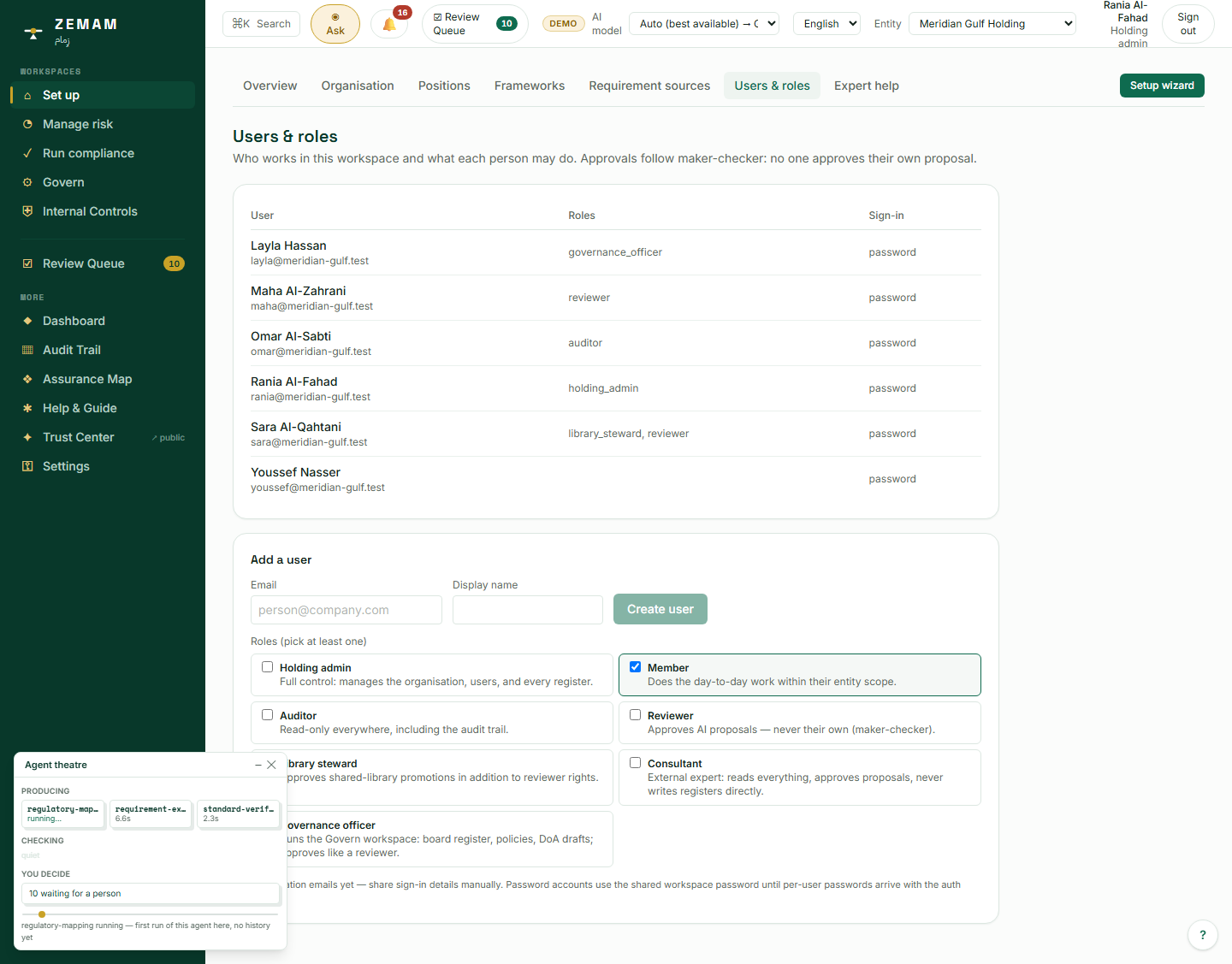
Access that is too broad is a control weakness an auditor will raise; access that is too narrow means someone cannot do the job they were hired to do. One screen listing every colleague and exactly what job they were given makes it possible to catch either mistake immediately, rather than discovering it months later when someone could see — or could not do — something they should not have been able to.
Open the Users & roles screen. Every colleague added is listed with their job and how they sign in.
This is the same list the two-person approval rule (step 8) checks against every time something needs a second signature.
No AI runs here either. Confirming access was granted correctly is exactly the kind of check that should be done by a person, not delegated to one.
12Understanding that responsibility belongs to a job, not a person
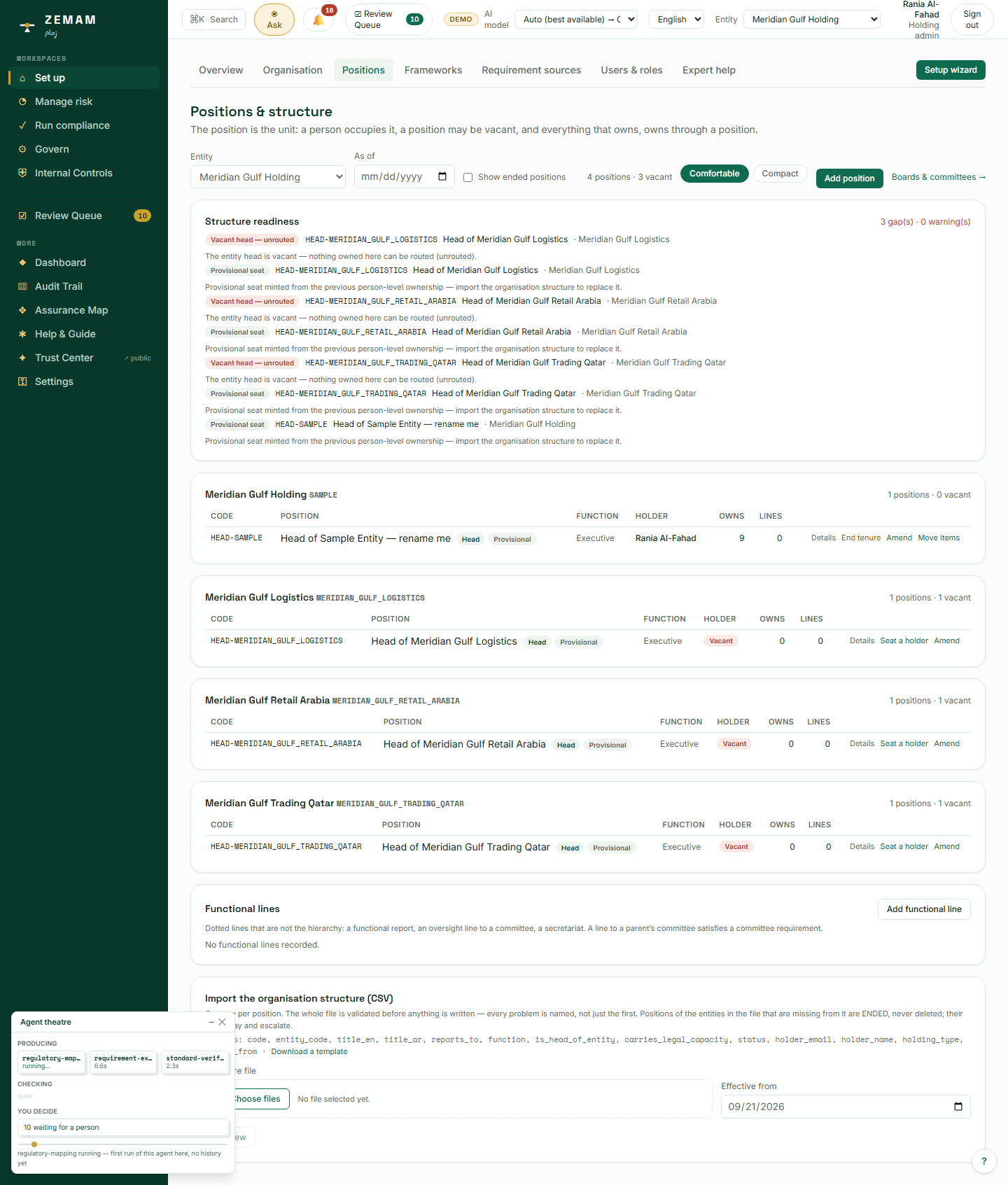
People change roles, get promoted and leave; the rules, safeguards and risks they were responsible for do not stop mattering when they do. Tying responsibility to a job title rather than to whichever individual currently holds it means a resignation or a reorganisation never leaves something silently unowned — the system either shows exactly who now holds that job, or states plainly that the seat is empty and shows who is accountable for it in the meantime.
- Open the Positions screen. The system has already created one "head" seat for every company automatically.
- A person can be assigned to sit in that seat, and moved out of it later without anything they were responsible for simply vanishing.
- If a seat is empty, the system says so in plain terms — as a real gap — rather than hiding it.
This is a foundational layer underneath almost everything else in the system: every safeguard, every rule, and every risk is owned by a JOB, and only indirectly by whoever currently happens to hold it. When a seat is empty, responsibility is shown moving up to whoever that job reports to, so nothing is ever silently unowned.
No AI decides who is responsible for what. Positions and reporting lines are structural facts about the company that a person records directly.
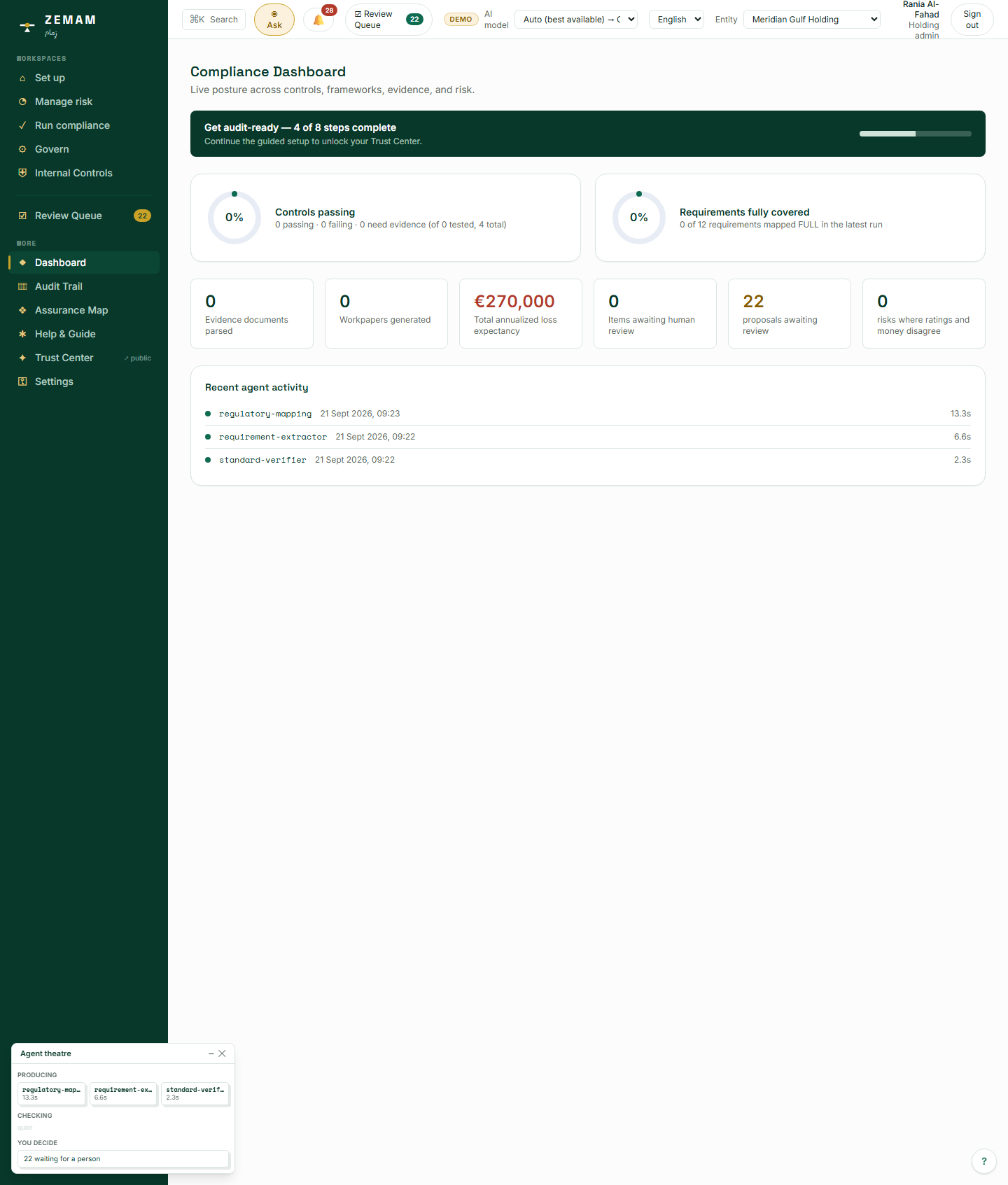
13The daily dashboard — the company’s health at a glance
A manager who has to open a dozen separate screens every morning to judge whether things are broadly on track will eventually stop checking, and a genuine problem will sit unnoticed until it is expensive to fix. One screen that states plainly how much of the required work is done, how many safeguards are confirmed working, and the size of the company’s largest known exposure is what makes a daily check realistic rather than a chore that gets skipped.
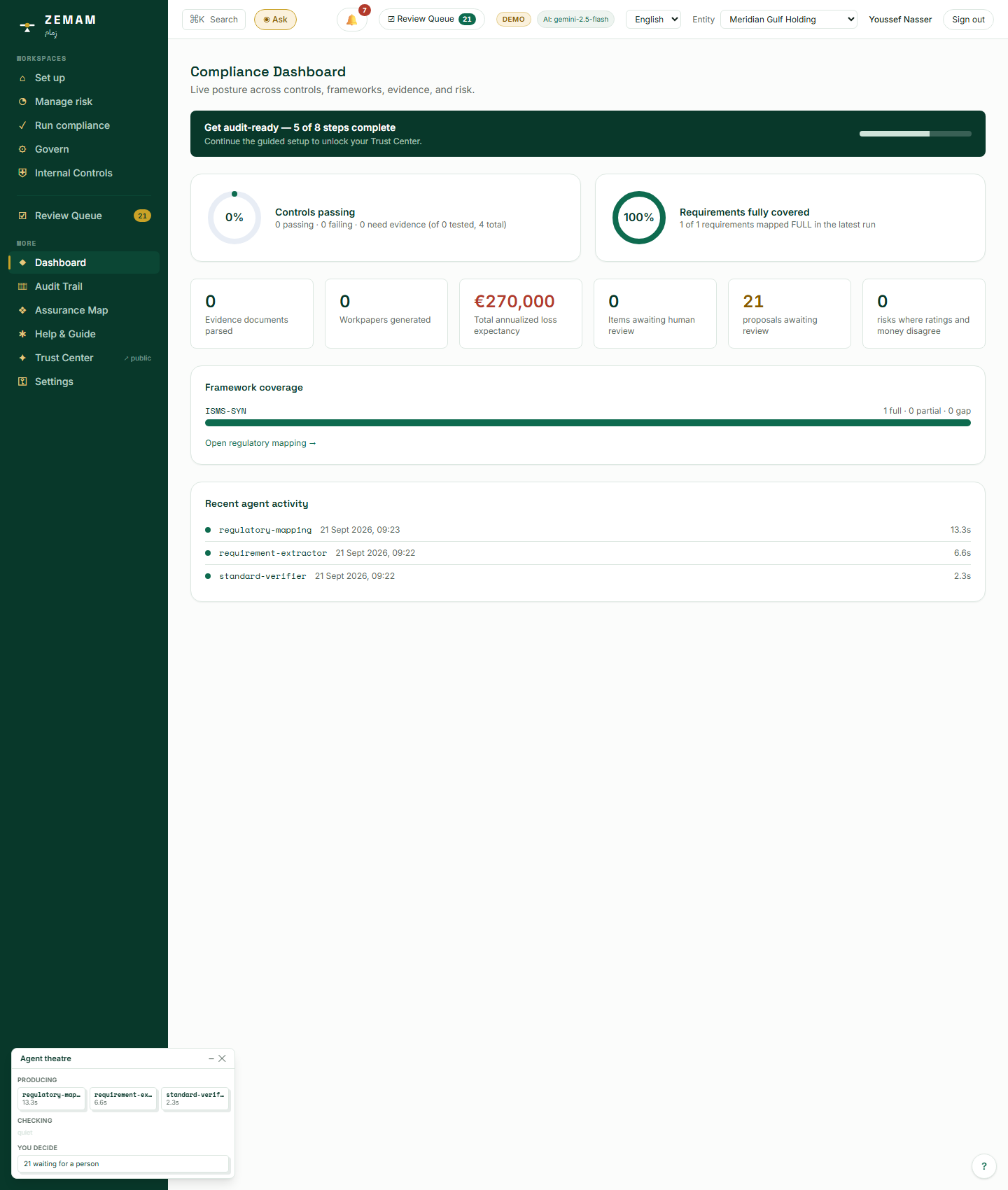
Open the Dashboard. It shows how many of the audit-readiness steps are complete, how many safeguards are actually confirmed to be working, the size of the company’s biggest known financial exposure, and a plain log of what the AI has actually done recently.
Every number on this screen is read live from the same records built in the steps above — nothing here is a separate, disconnected report.
The dashboard itself runs no AI — it simply reports, honestly, what earlier AI-assisted steps actually did (with real timestamps and how long each one took), rather than hiding that work behind the scenes.
14Settings — the few things every company configures once
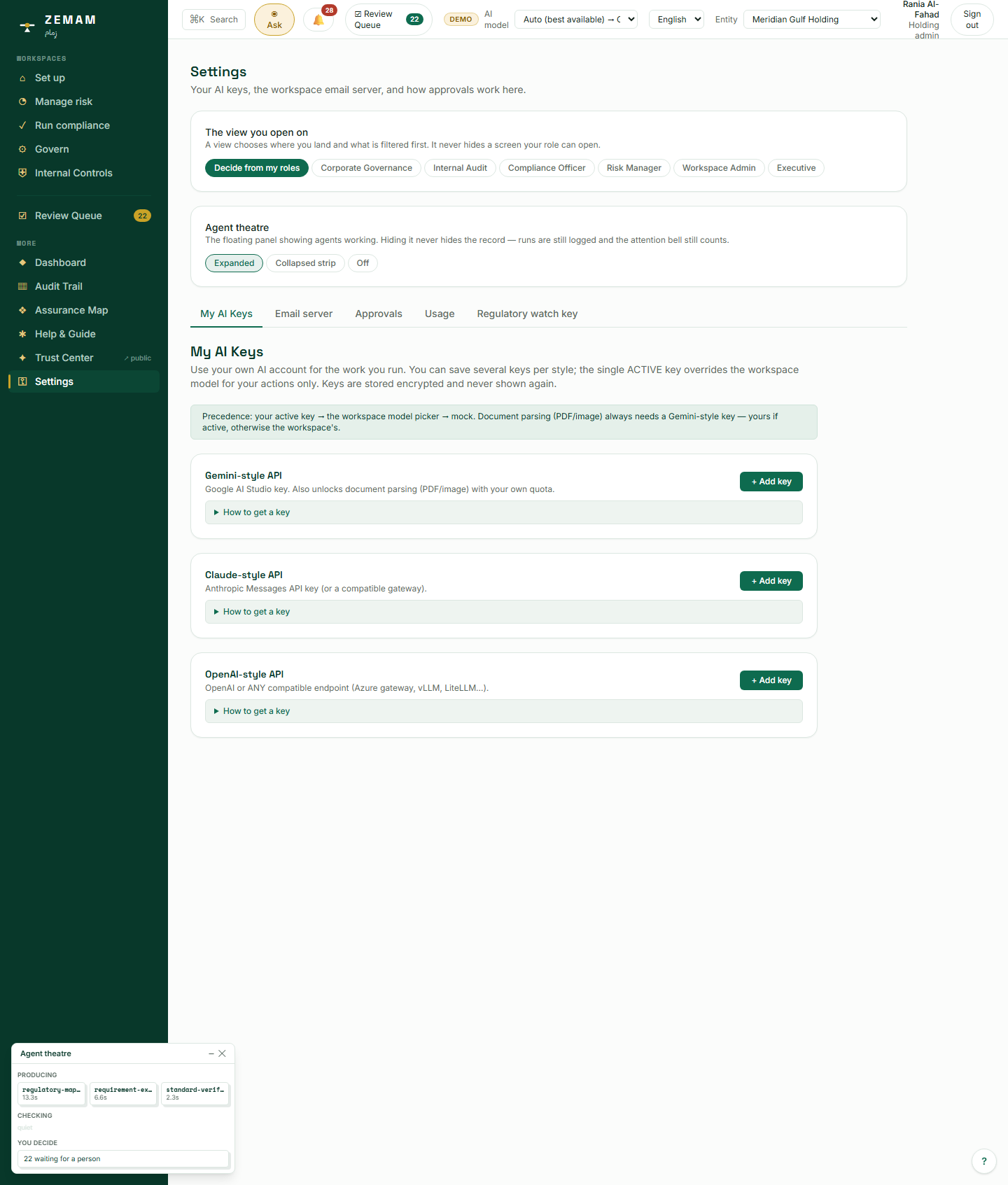
A handful of decisions apply to the whole company rather than to any one screen — which AI provider to use, how outgoing mail is sent, how strict approvals need to be, and who is paying for AI usage. Keeping those together in one place, rather than scattered across the screens they happen to affect, means whoever is responsible for the company’s overall configuration can find and review all of it without having to remember where each setting lives.
Open Settings. Each of those is its own clearly labelled tab — nothing here needs to be touched immediately, but everything is there when it does.
The approval-level dial here is the very same rule shown, read-only, back in step 8 — this is simply where a holding company’s owner is actually allowed to adjust it.
No AI runs on this screen. These are fixed configuration choices a company makes once and revisits rarely, not decisions an AI would meaningfully assist with.
15The inbox of things waiting on a human decision
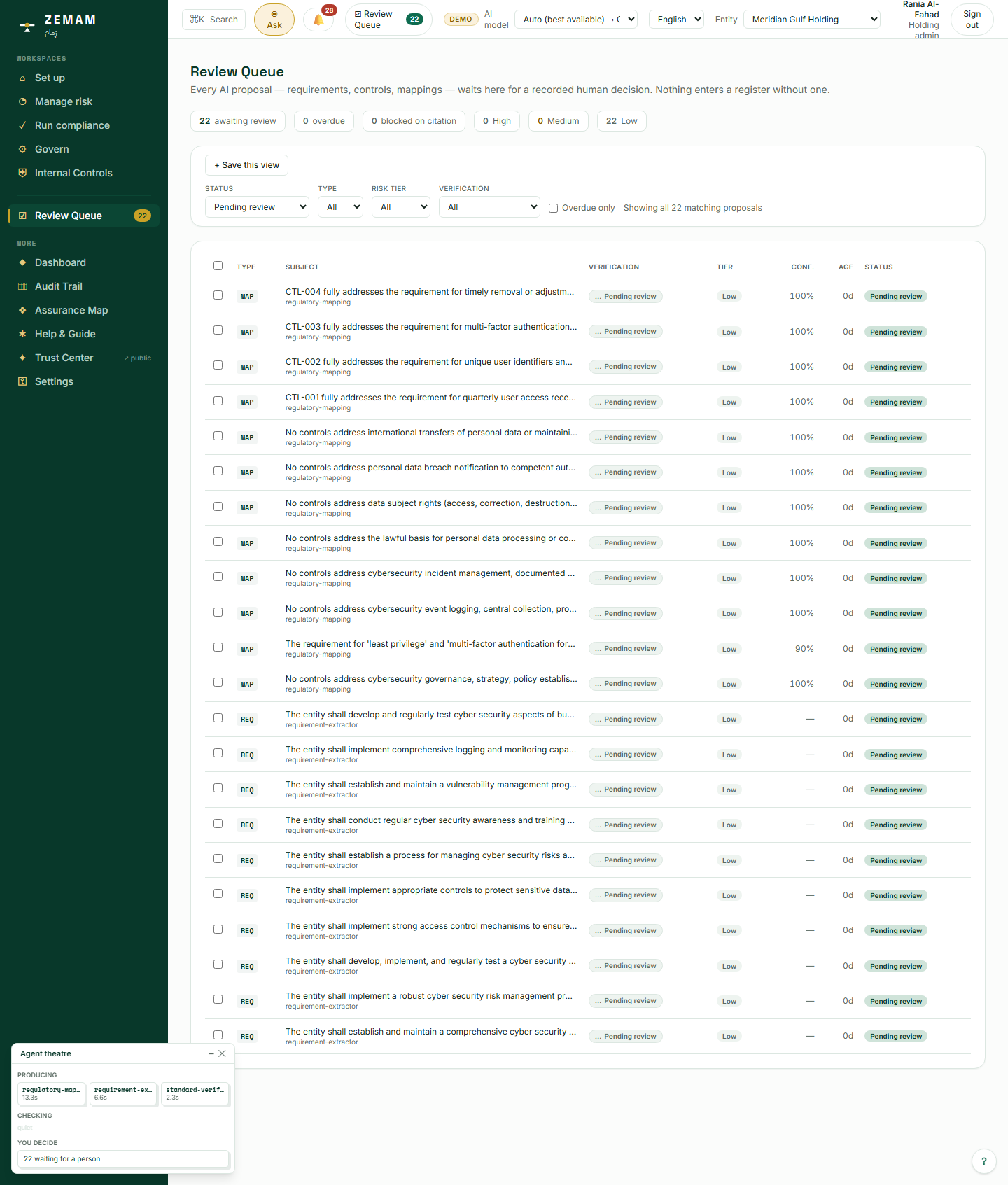
An approval that is easy to overlook is, in practice, an approval that never happens — and a rule or a safeguard match nobody ever reviews stays a draft indefinitely, even while the company may already be acting as though it were official. One shared, filterable inbox for everything awaiting a decision, rather than notifications scattered across different screens, is what makes it realistic for a company to actually keep up with its own review backlog.
Open the Review Queue. Every pending item from the earlier steps is listed there, filterable by type and by how sensitive it is — and a set of filters you return to can be saved under a name, so tomorrow it is one click rather than four. Long queues are paged, so nothing sits past the end of the first screen unreachable.
This is the exact same queue every other colleague in this manual sees, filtered to what each person is actually allowed to act on — Chapter 4 shows a colleague actually working through it.
Opening the queue runs no AI itself — it lists work AI already did elsewhere, waiting for a person’s decision. Chapter 4 shows that decision actually being made.
Chapter 2 — Governance Officer: Boards, Committees and Policy
Layla Hassan runs the parts of the business that are about oversight rather than day-to-day operations — company objectives, spending authority limits, the board itself, and the policies the company is legally expected to hold. Her screen looks the same as Rania’s, but what she is allowed to change is different: she can write to this one area, and everything else is read-only for her.
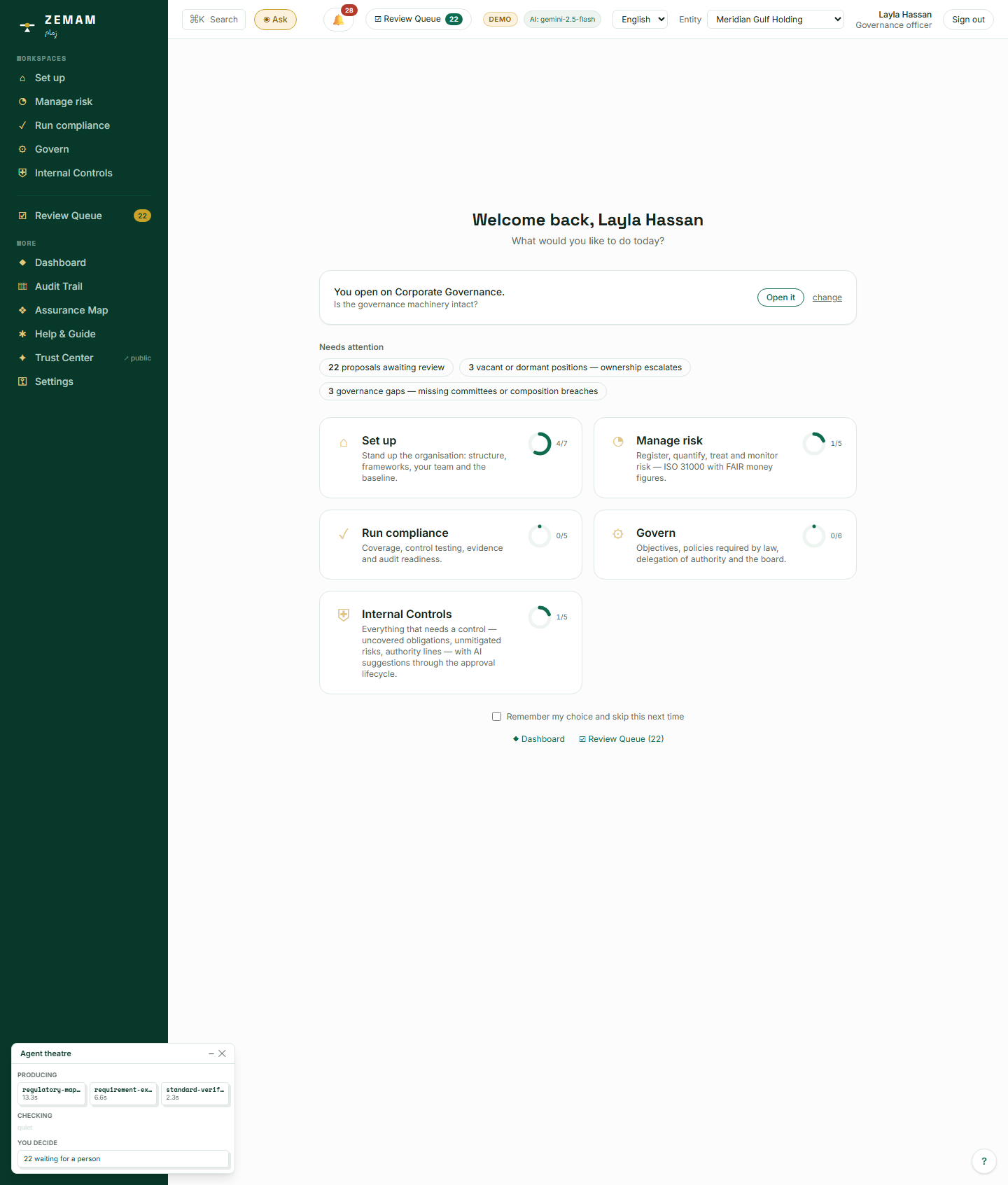
1Seeing a different set of doors, from the same front hall
Every colleague using the same product, with only their own permissions different underneath, means the company does not have to run separate systems — or separate training — for each job function. It also means nobody ends up able to change something outside their own responsibility simply because it happened to be visible on their screen.
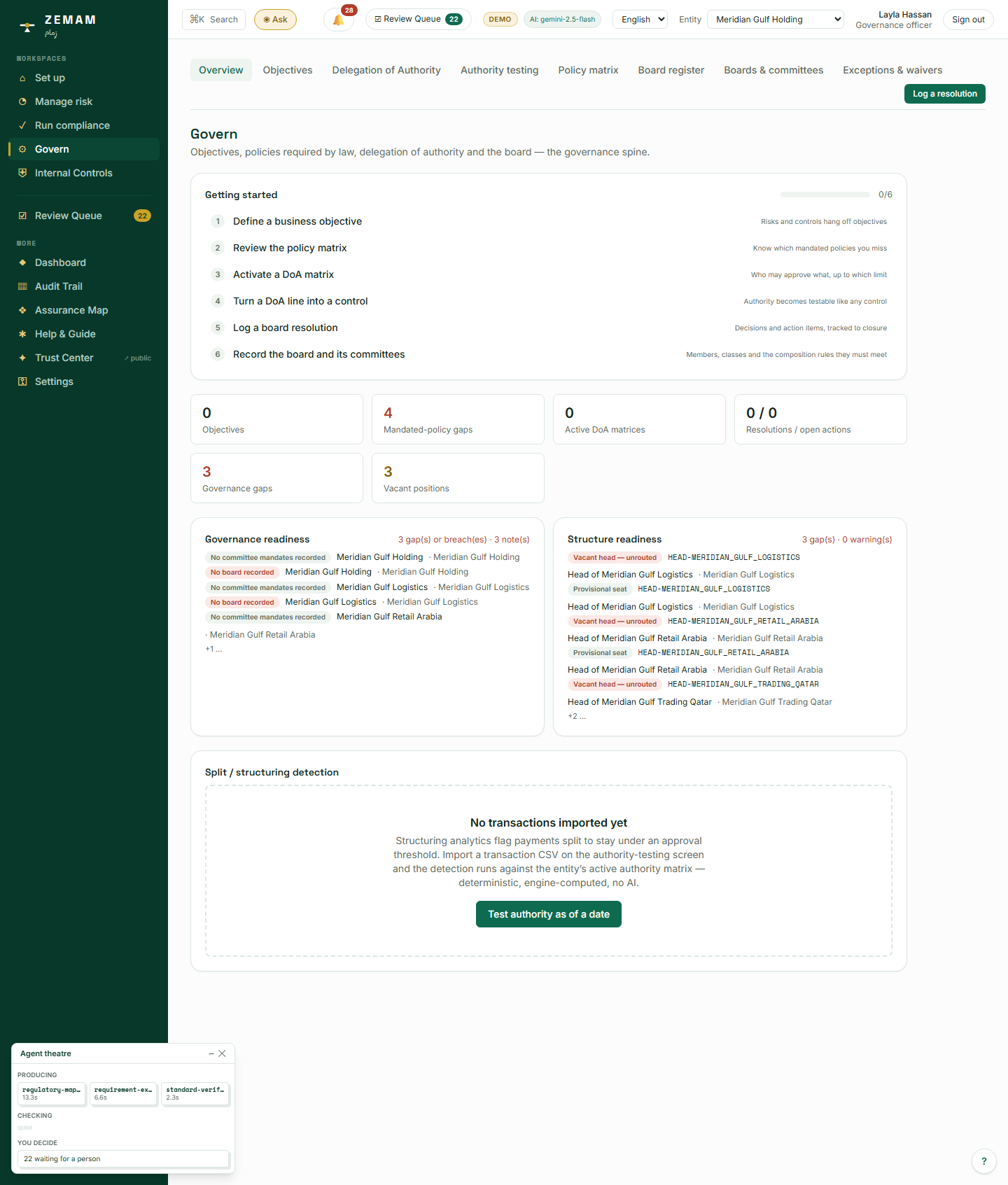
Layla signs in with her own account. The role shown next to her name, top right, is what actually decides what she can change — not anything she picks herself.
This is the same screen every colleague in this manual sees; only the underlying permissions differ, invisibly, based on the job chosen for each person back in Chapter 1.
No AI runs at sign-in. The role shown is a fixed fact about the account, decided when the person was added in Chapter 1.
2Recording the board, and seeing exactly what is missing
A company is routinely expected to demonstrate that it has a properly constituted board — the right number of members, an independent chair where one is required, someone keeping formal minutes — and being unable to answer that question quickly, with evidence, is itself a governance weakness a regulator or an investor will note. Stating the gaps plainly before they are fixed, rather than only after an audit finds them, is what lets a governance officer close them on the company’s own timeline instead of an inspector’s.
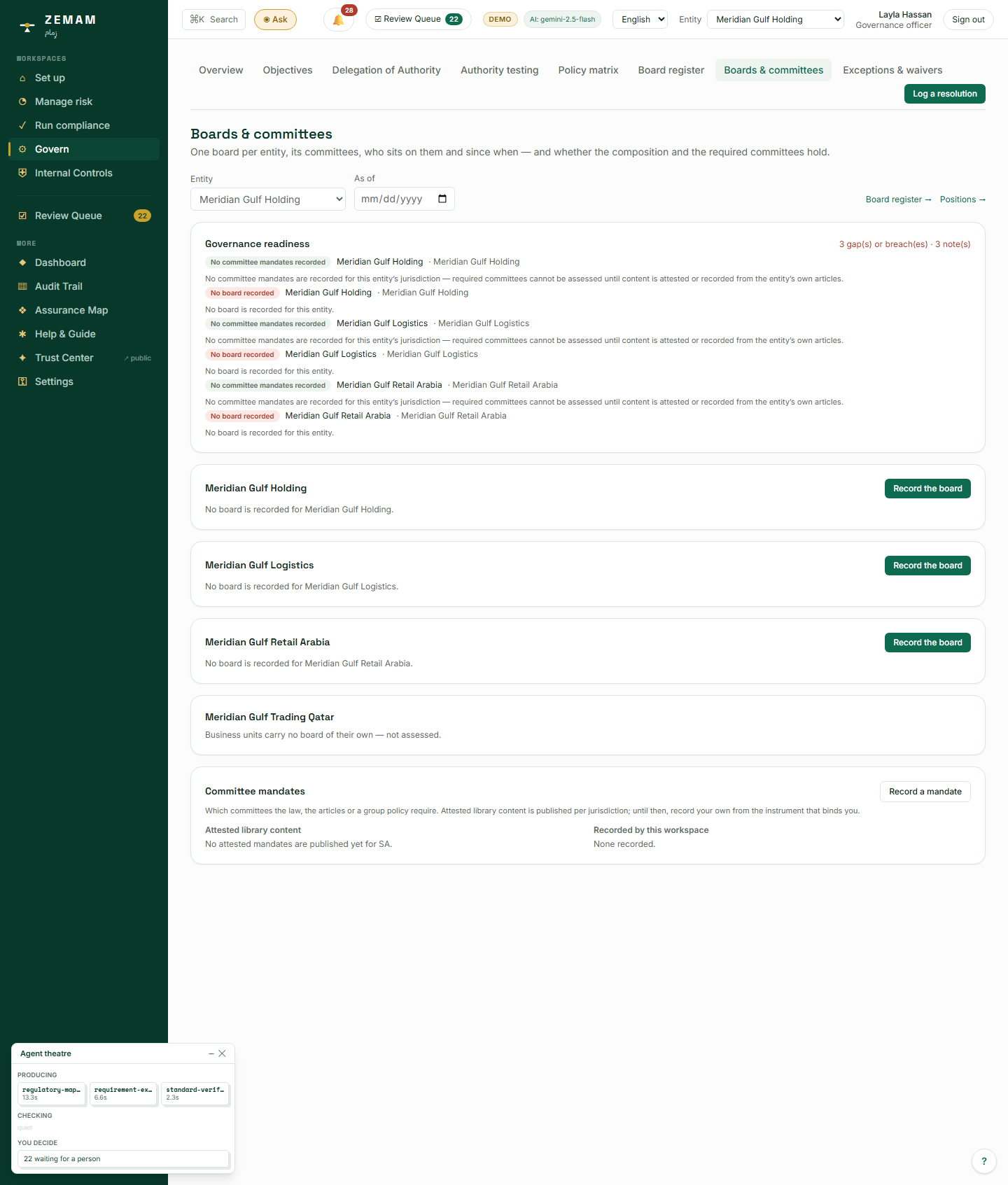
- Open Boards & committees. Before anything is recorded, the system already states the gaps plainly — "too few members," "no chair," "no secretary" — for a board that does not exist yet.
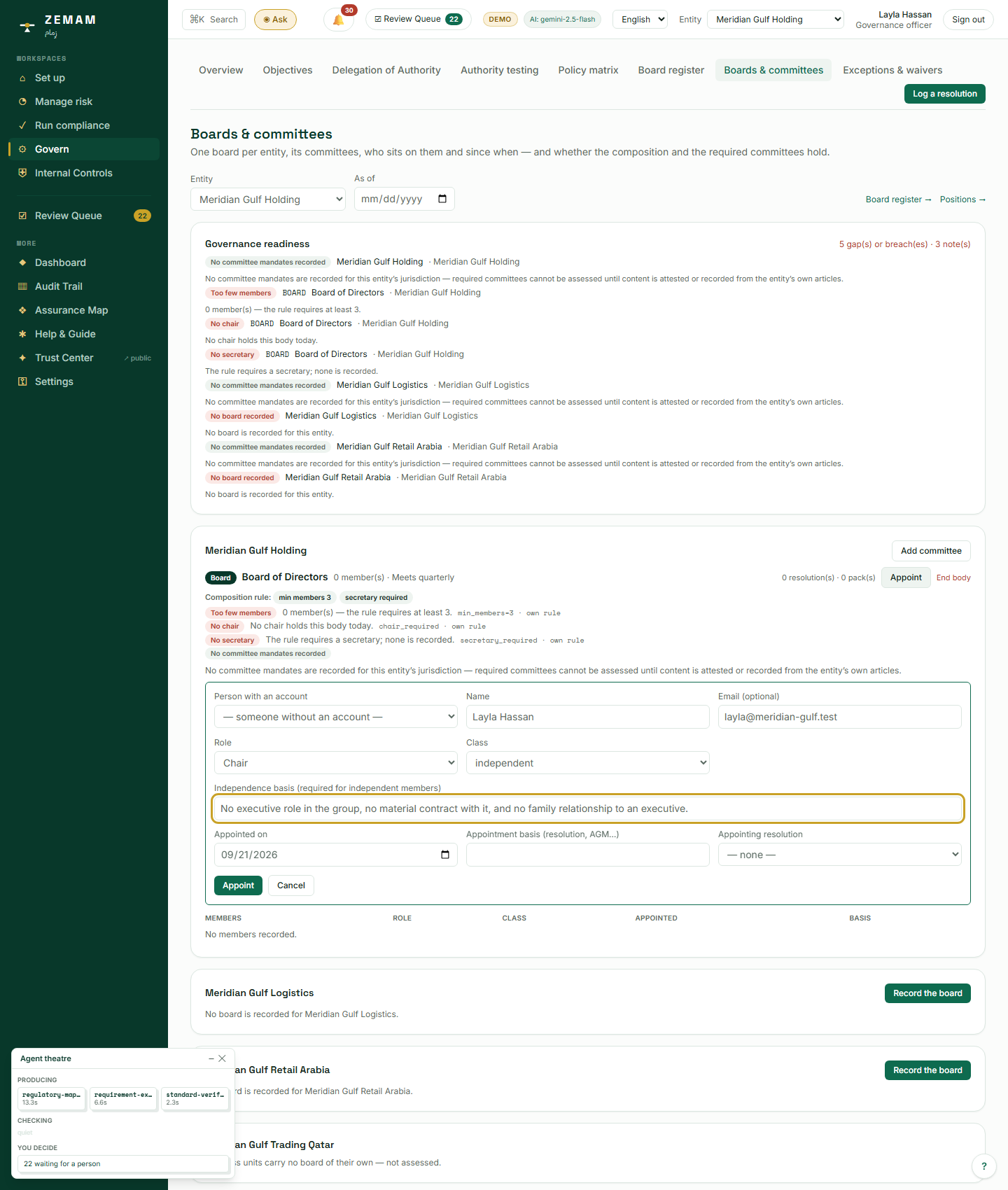
- Record a Board of Directors from a ready-made template (a template simply pre-fills the usual minimum — at least three members, one of them keeping the minutes — so nobody has to know those numbers from memory).
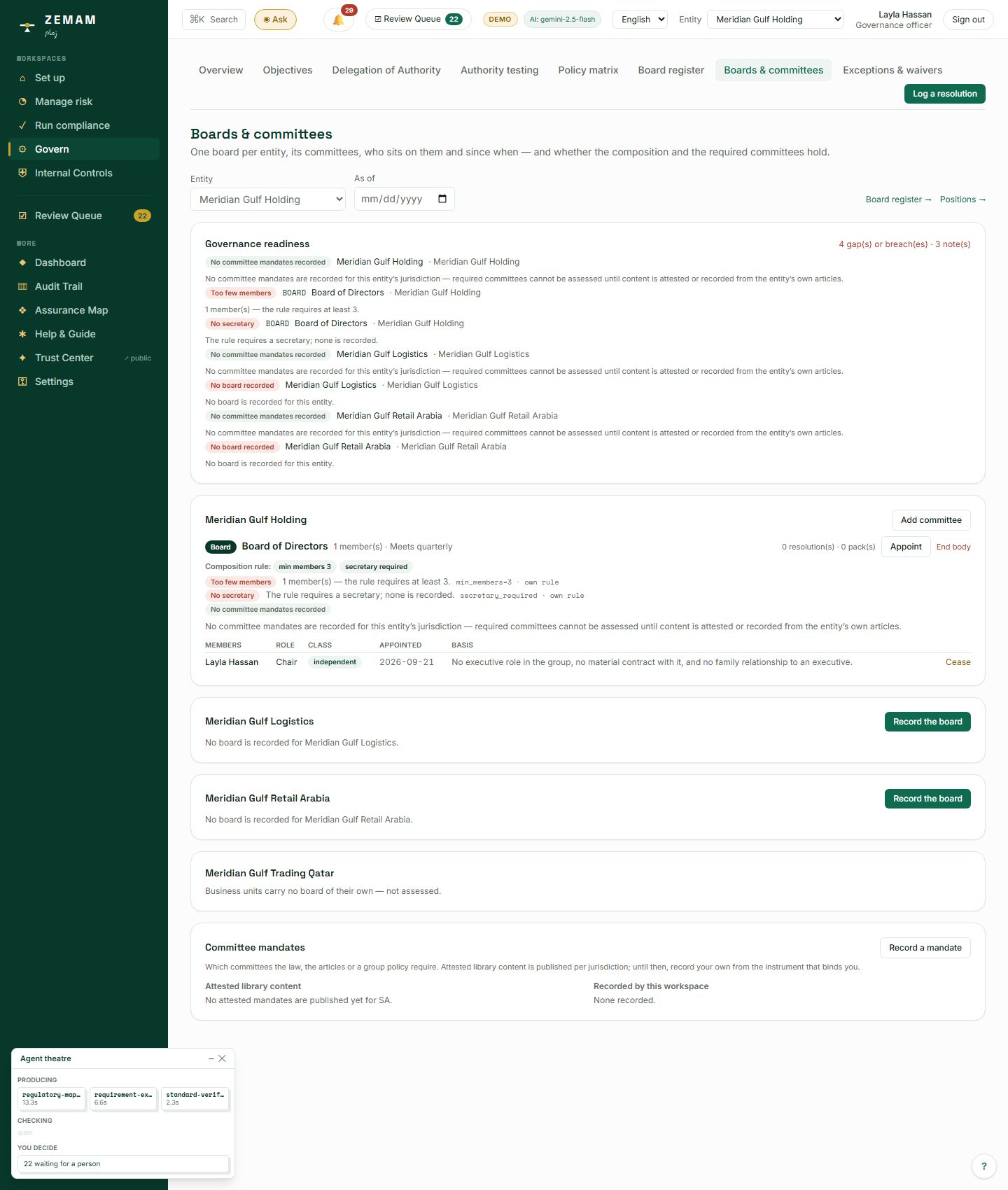
- Appoint a chair. Marking someone as an "independent" chair specifically requires writing down, in a sentence, why they qualify as independent — not just ticking a box.
The gaps and progress shown here are not a separate report someone has to remember to check — the exact same figures drive the notification bell every relevant colleague sees, so nothing here can quietly disagree with what a manager is told elsewhere.
No AI decides whether a board meets the requirements. The gaps shown — too few members, no chair, no secretary — come from a fixed set of governance rules the system applies the same way for every company, not from an AI’s judgement.
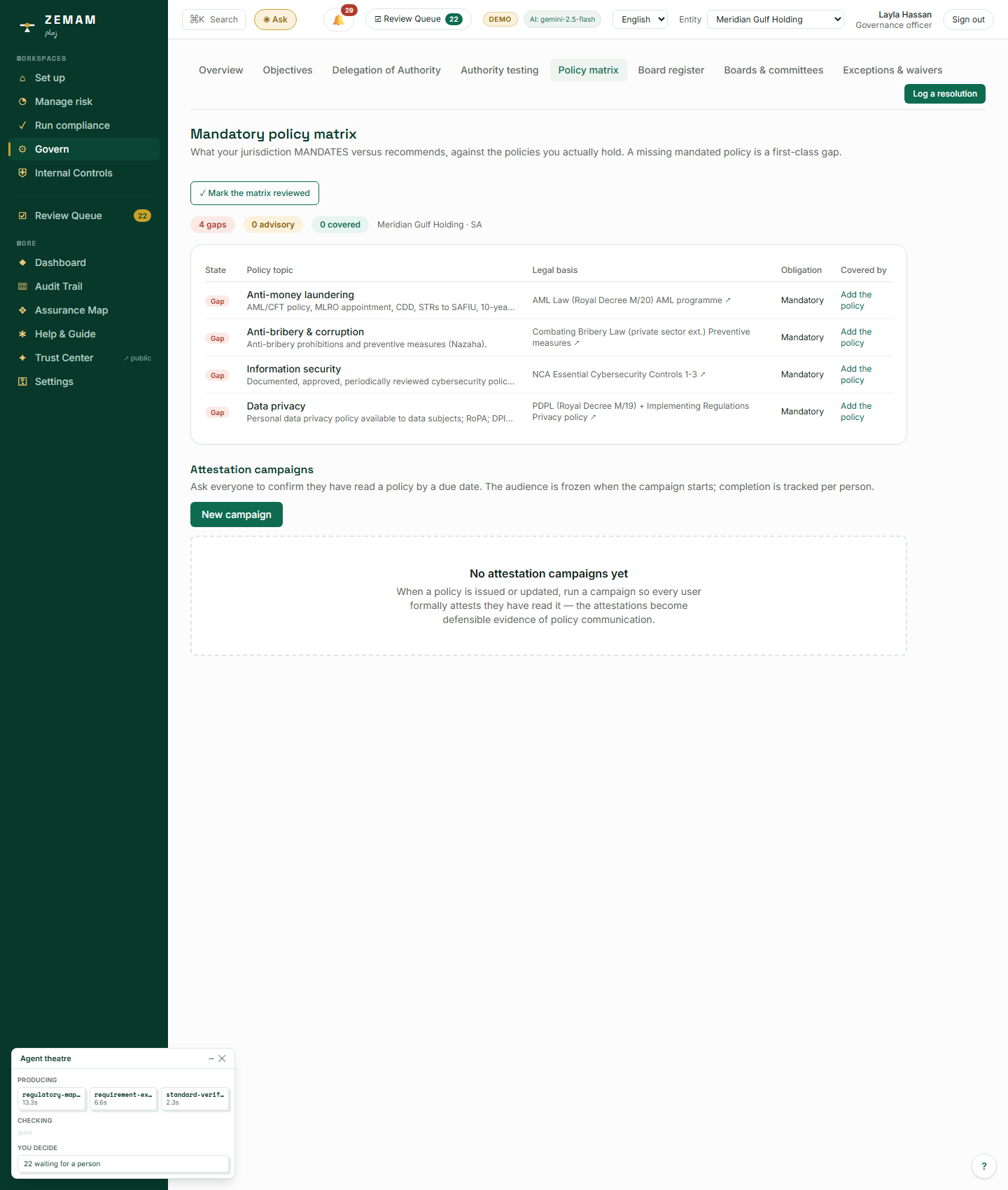
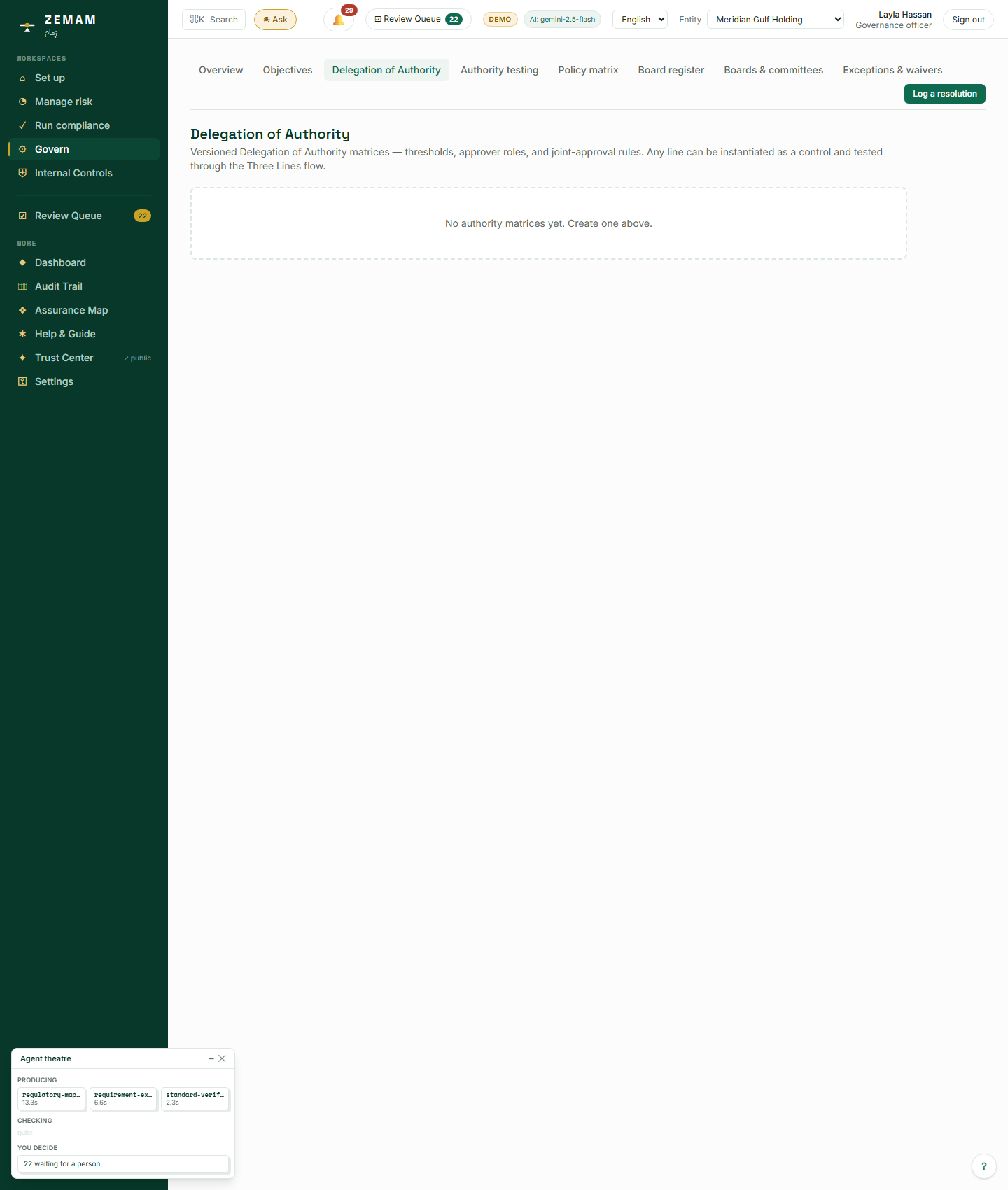
3Policies and spending-authority limits
Two more things regulators and boards commonly expect: a written policy for certain topics (say, information security or anti-bribery), and clear limits on who is allowed to approve spending or sign contracts up to what amount. Not knowing, at any given moment, exactly which of those the company already has is itself a gap worth closing before an auditor or a bank asks the question first.
Open the Policy matrix to see which required policy topics are covered and which are not; open Delegation of Authority to see the planned approval-limit ladder once the company’s first spending rules are drafted.
A confirmed policy on this screen is what later allows a colleague to be asked to formally acknowledge they have read it — a separate, later step not covered in this manual.
No AI runs here. Which policies exist and what the spending-authority ladder looks like are both facts the company records directly, not something an AI infers.
Chapter 3 — Auditor: Read Everything, Change Nothing
Omar Al-Sabti is the company’s internal auditor. His job is deliberately the most restricted in the system: he needs to be able to see absolutely everything, in order to check it independently, but he must not be able to change any of it — not even upload a single piece of supporting evidence. That restriction is the entire point of the role, and it is enforced by the system itself, not by anyone’s good behaviour.
1A screen that tells you plainly what you cannot do
An internal auditor’s opinion is only worth relying on if they could not have quietly influenced the thing they are checking — that independence is the entire value of the role. Stating the restriction on screen, rather than leaving it to the auditor’s own discipline, is what makes that independence something the company can actually demonstrate to a board or an external auditor, not just something it claims.
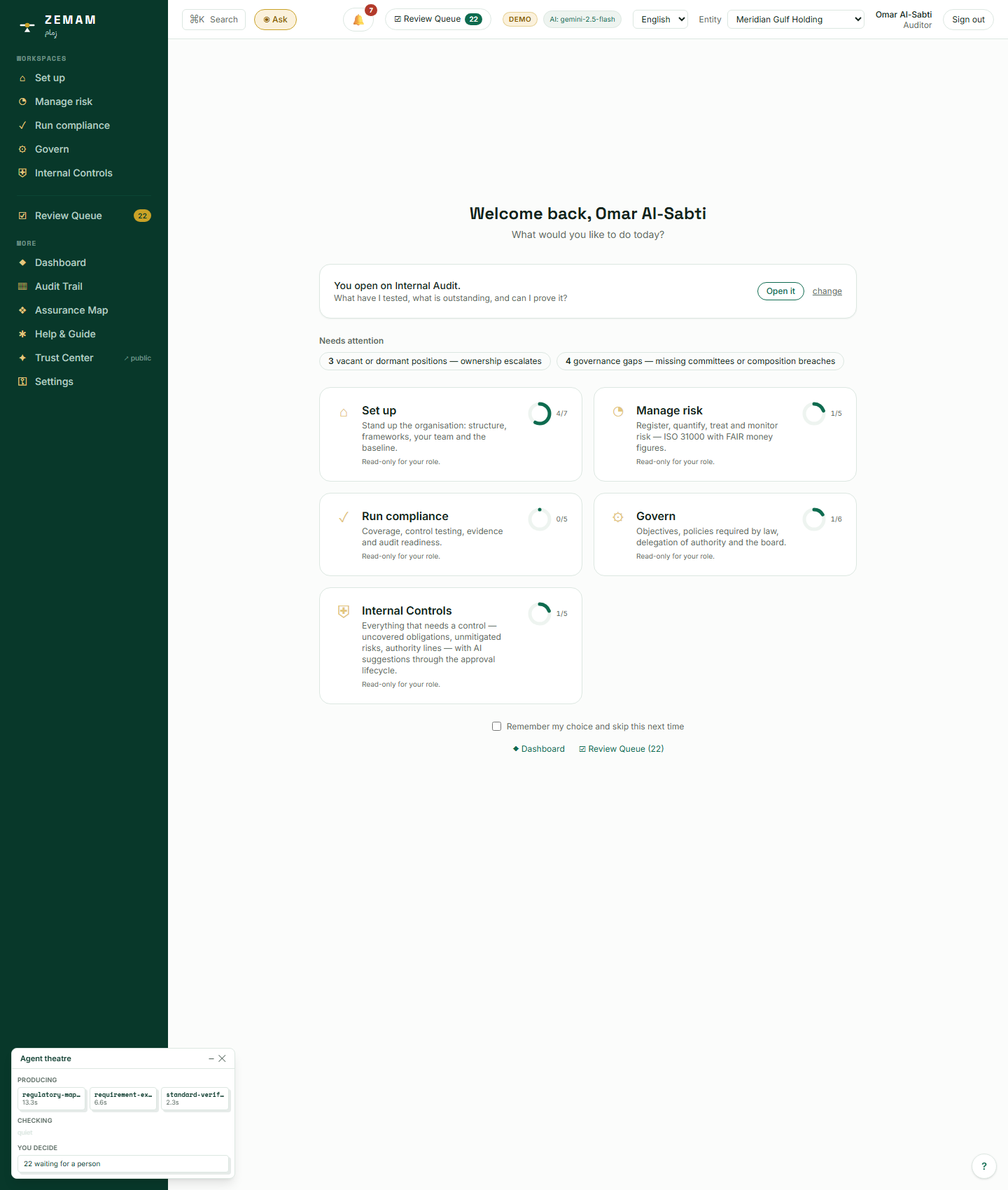
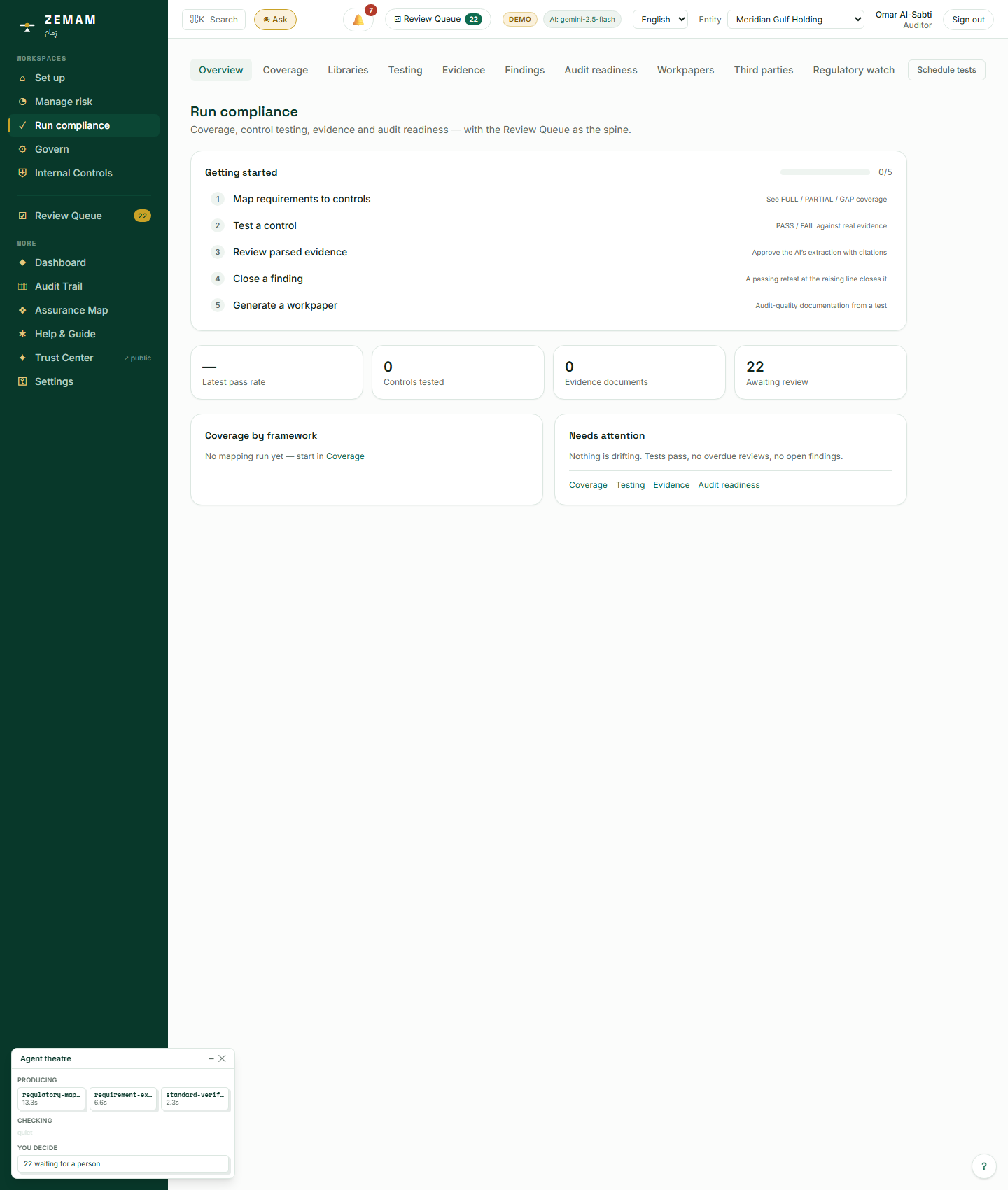
Omar signs in. Every one of the five areas of work is explicitly labelled "Read-only for your role" — not hidden, just visibly locked to viewing only.
This is enforced by the same job-based permission system used for every colleague in this manual — Omar sees the identical screens everyone else does, with writing switched off underneath, not a stripped-down version.
No AI decides what an auditor can see or change. Access is fixed by the job assigned to the account back in Chapter 1, the same way it is for every other role.
2What "read-only" actually means when someone tries anyway
A restriction that has never actually been tested is a restriction nobody can vouch for. When someone in a read-only role genuinely attempts a change their role should not allow, getting a clear, specific refusal — rather than a confusing error — is what turns "auditors cannot write to the register" from a policy statement into something demonstrably true.
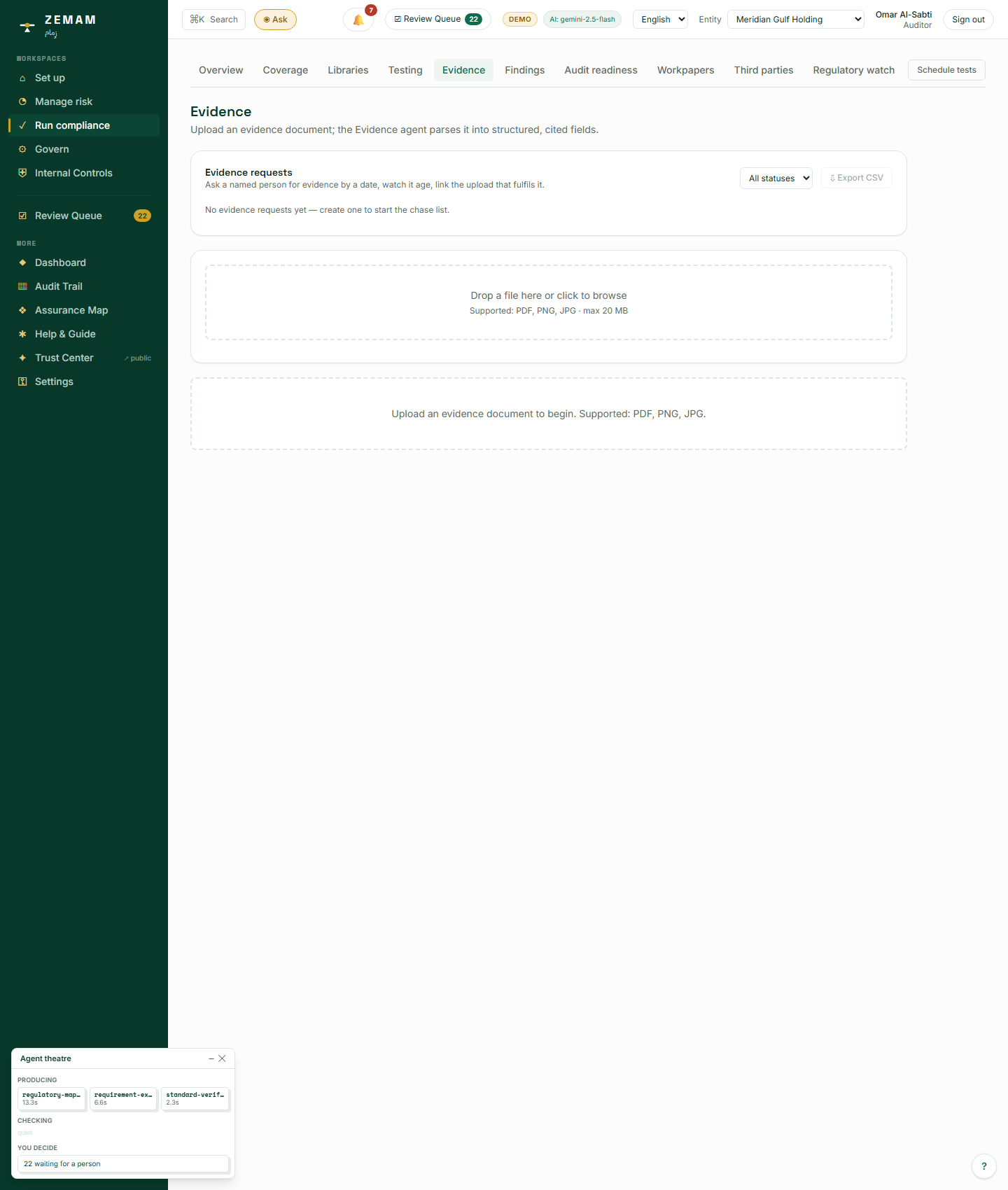
Omar tried to upload a piece of supporting evidence, exactly as an auditor doing real work might reasonably attempt.
The refusal did not hide the drop-zone or pretend the option was never there — it explained, in the product’s own words, exactly why the action was blocked.
No AI is involved in the refusal — it is a straightforward permission check, the same one that would refuse the same action from anyone in a read-only role.
3Reading the record of everything that has happened
An auditor’s core job is confirming what actually happened, when, and by whom — which is only possible if a complete record exists and cannot have been quietly edited after the fact. A record that every action anywhere in the system writes to automatically, rather than one assembled separately when someone asks for it, is what makes it credible as evidence rather than a summary produced for the occasion.
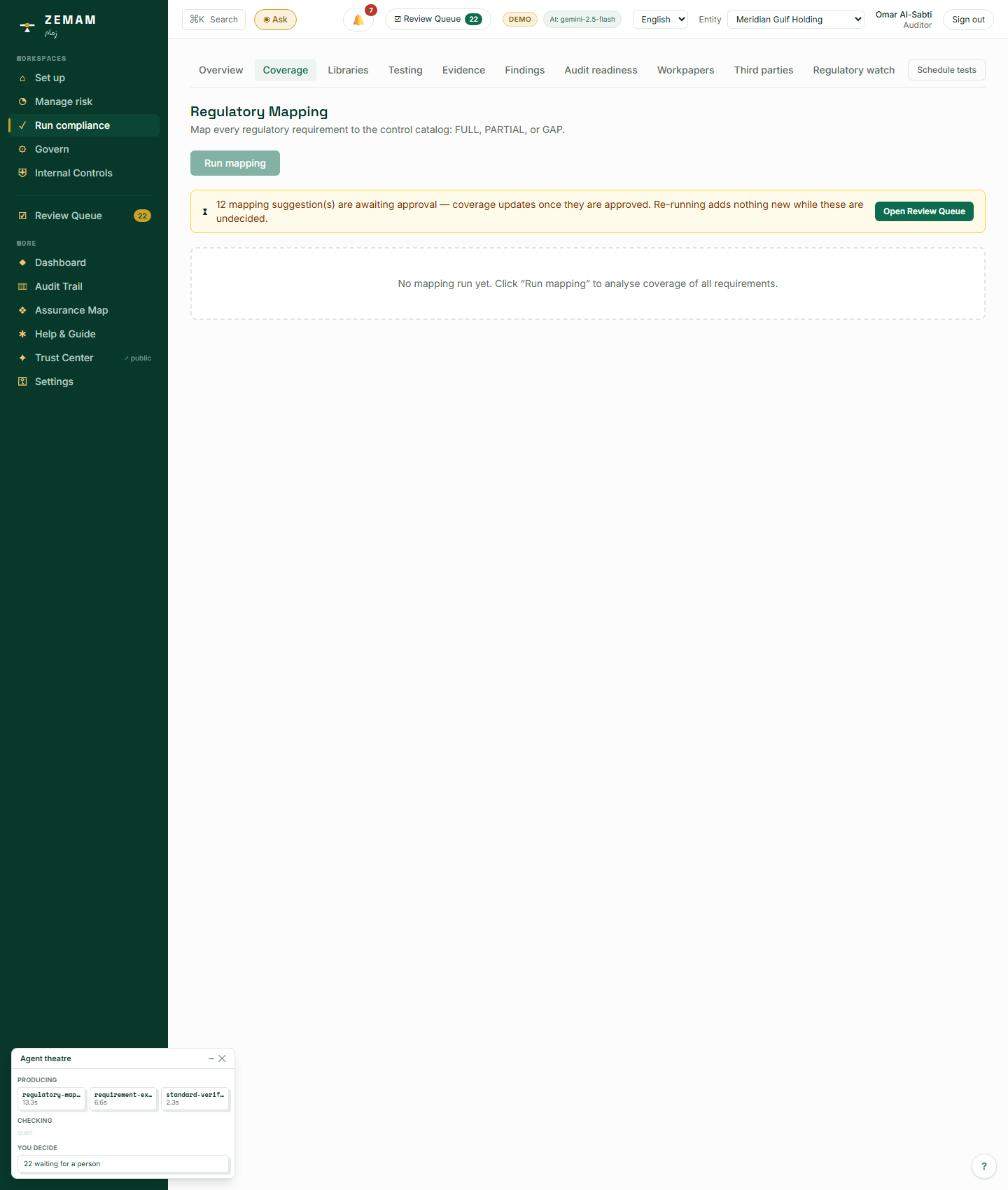
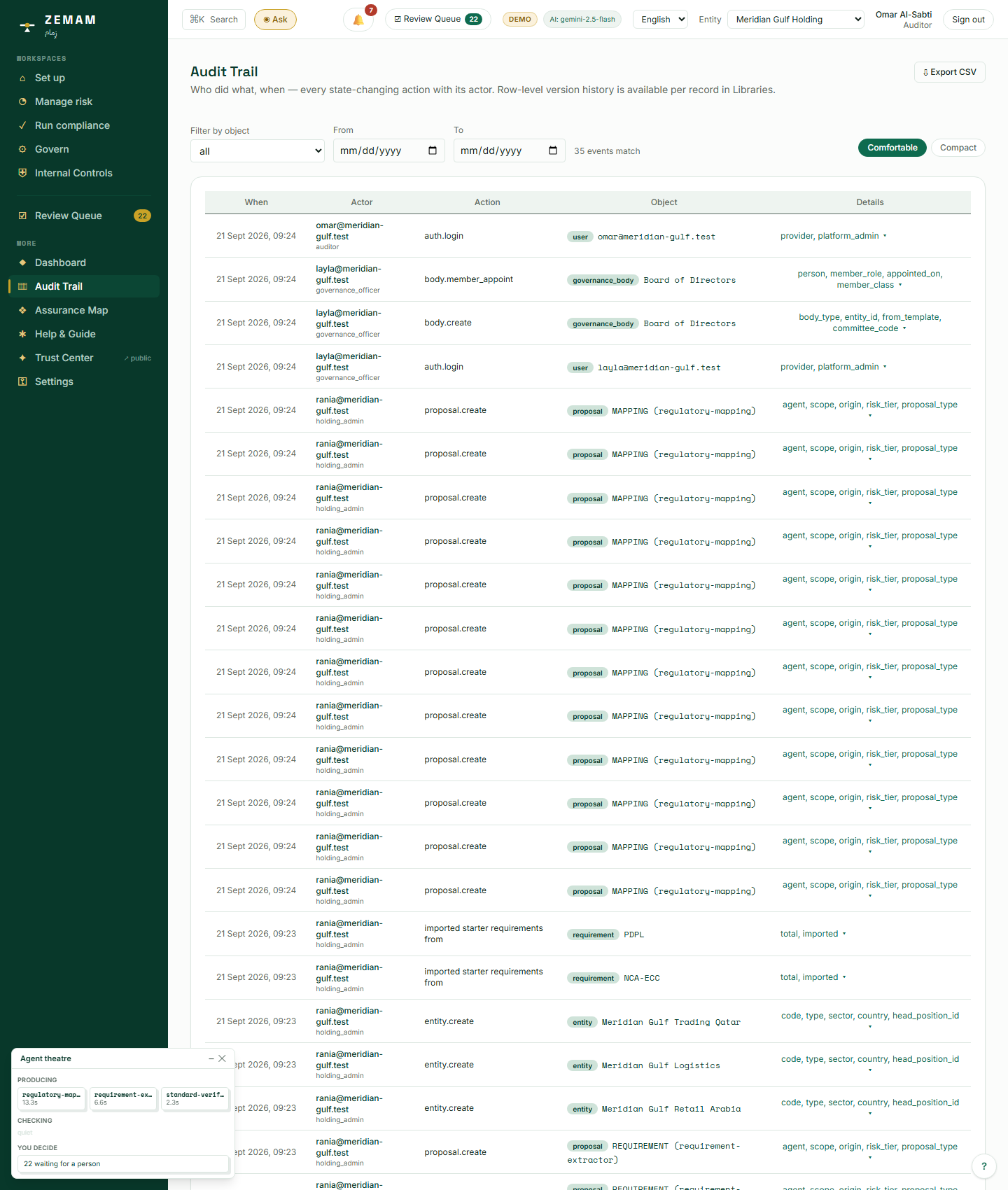
Open Coverage to see which rules the current safeguards actually address, and the Audit Trail to see every action taken anywhere in the company’s account so far — filterable by object and by date range, paged, and exportable as a spreadsheet. The export is the whole filtered set rather than the page on screen, and if the set is larger than one file will carry, the file’s own first lines say so and tell you to narrow the dates.
The audit trail is not a separate log kept "for auditors" — it is the same record every action anywhere in the system writes to automatically, which is exactly what makes it trustworthy as evidence. The count shown is the number of events that MATCH the filters, not the number visible on screen, so a reader is never quietly looking at a slice they believe is the whole.
No AI decides what goes into the audit trail — every action writes to it automatically and permanently, whether or not AI was involved in the original action itself. The Coverage screen is different: the panel in its bottom-left corner is the AI actually at work, matching every rule against the safeguard catalogue.
Chapter 4 — Reviewer: Closing the Loop on an AI Draft
Maha Al-Zahrani’s entire job in the system is the second half of the two-person rule introduced back in Chapter 1: an AI may draft a rule or suggest that a safeguard satisfies it, but only a human reviewer’s decision — never the decision of whoever asked the AI to draft it in the first place — can let that draft become part of the company’s official record.
1Opening the shared inbox of pending decisions
An AI-drafted rule or safeguard match that nobody is required to look at will, in practice, sit there unreviewed indefinitely — and until it is reviewed, the company has no official position on it either way. A single, visible queue covering the whole company is what makes that promise — that nothing an AI produces becomes official unchecked — something that can actually be verified, rather than simply asserted.
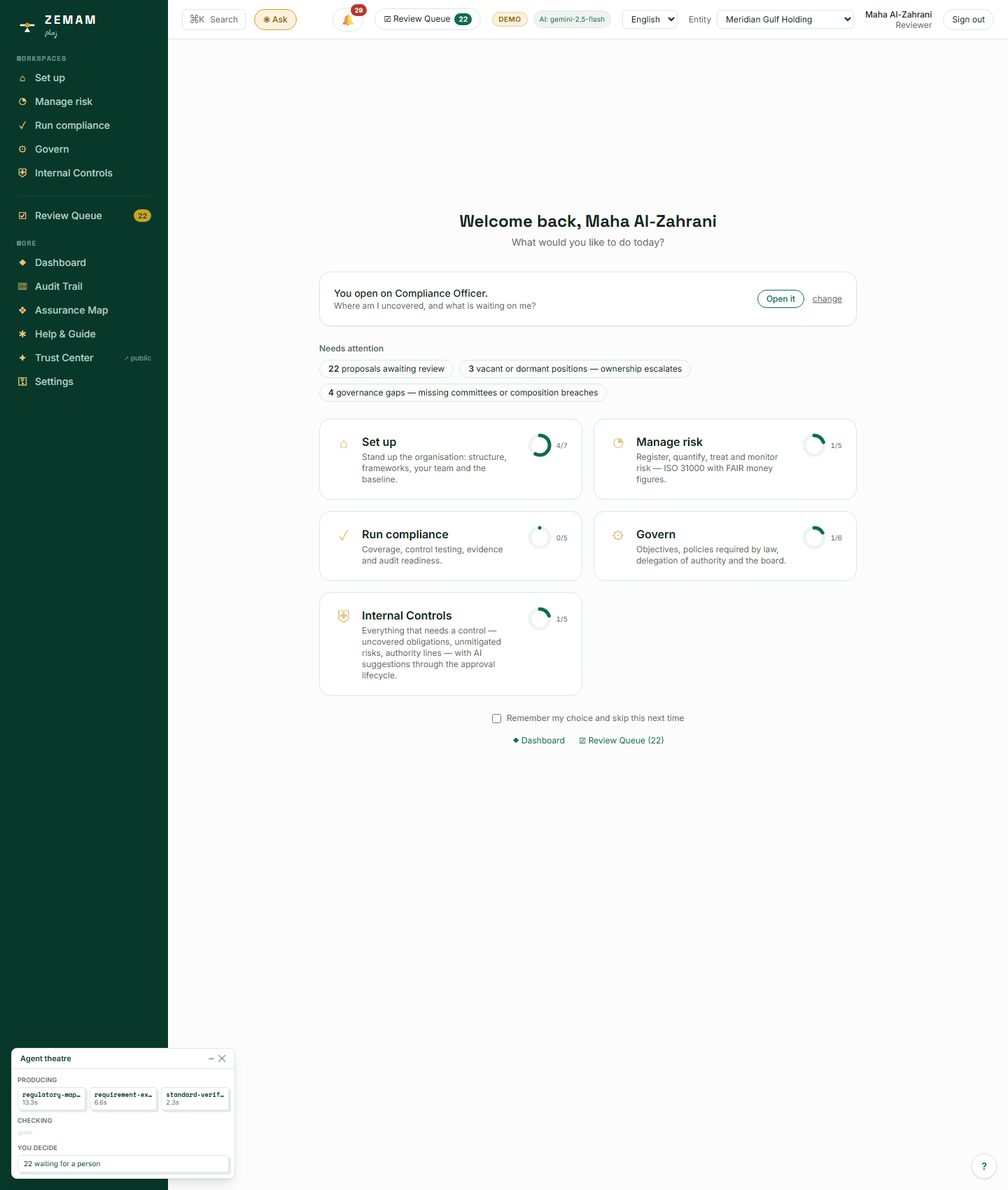
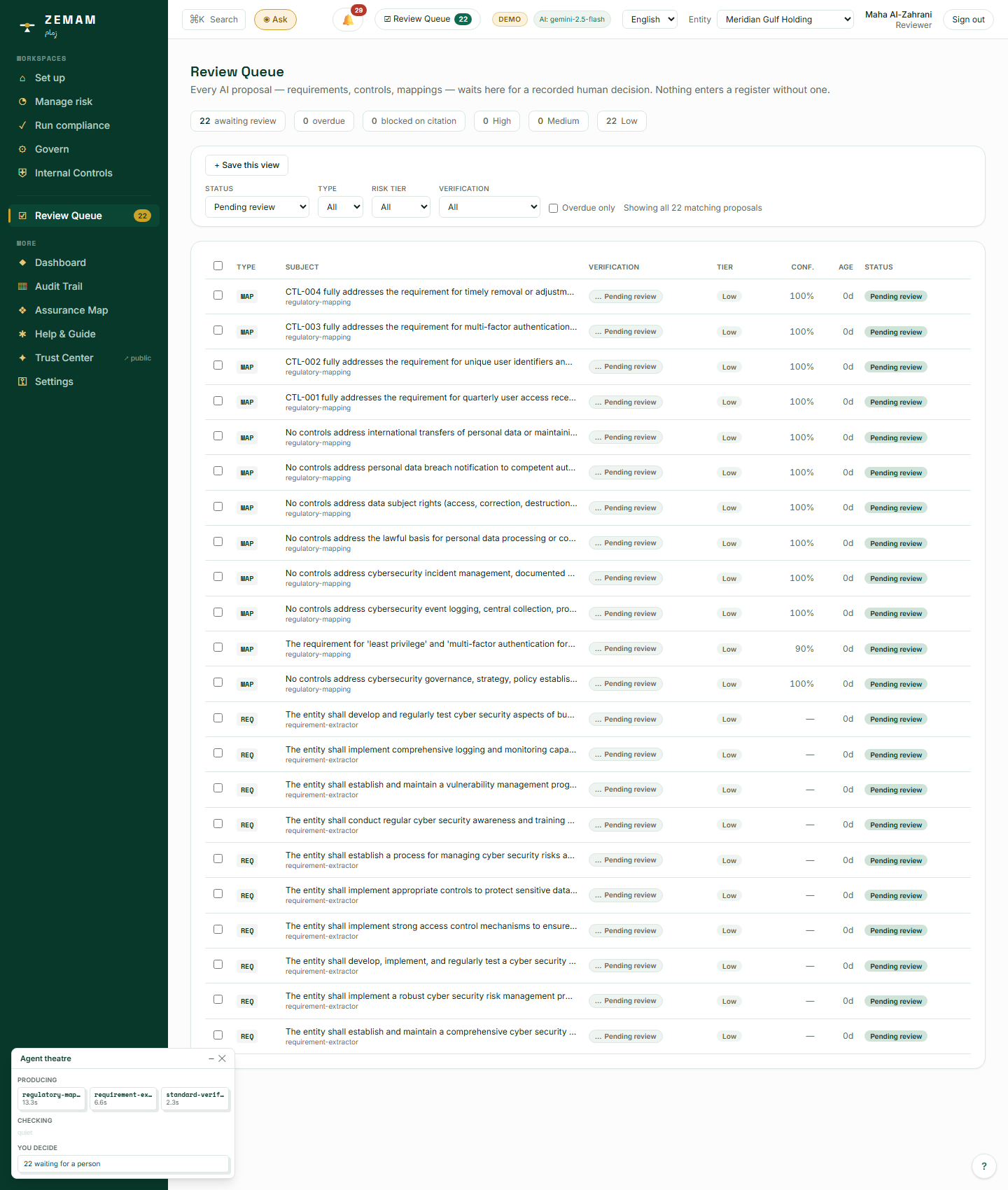
Maha signs in and opens the Review Queue. Every pending item across the whole company is listed, filterable by status, type, how sensitive it is, and whether its source citation has been double-checked — and because a reviewer returns to the same few filters every morning, a filter set can be saved under a name and re-applied in one click.
This is the identical queue shown to Rania in Chapter 1 (step 15) — the same underlying list, simply seen through a different colleague’s permissions.
Opening the queue runs no AI itself — it lists items that earlier AI-assisted steps produced (drafting rules, matching safeguards to rules), each still waiting for the human decision this chapter is about.
2Making a real decision on an AI-drafted item
A reviewer who is only shown a yes/no button, with none of the reasoning behind it, is not really exercising oversight — they are rubber-stamping. Showing the full reasoning, letting the reviewer adjust the wording before deciding, and treating "approve" and "make this official" as two separate, both-recorded actions rather than one click, is what makes the review a genuine check rather than a formality on the way to the same outcome regardless.
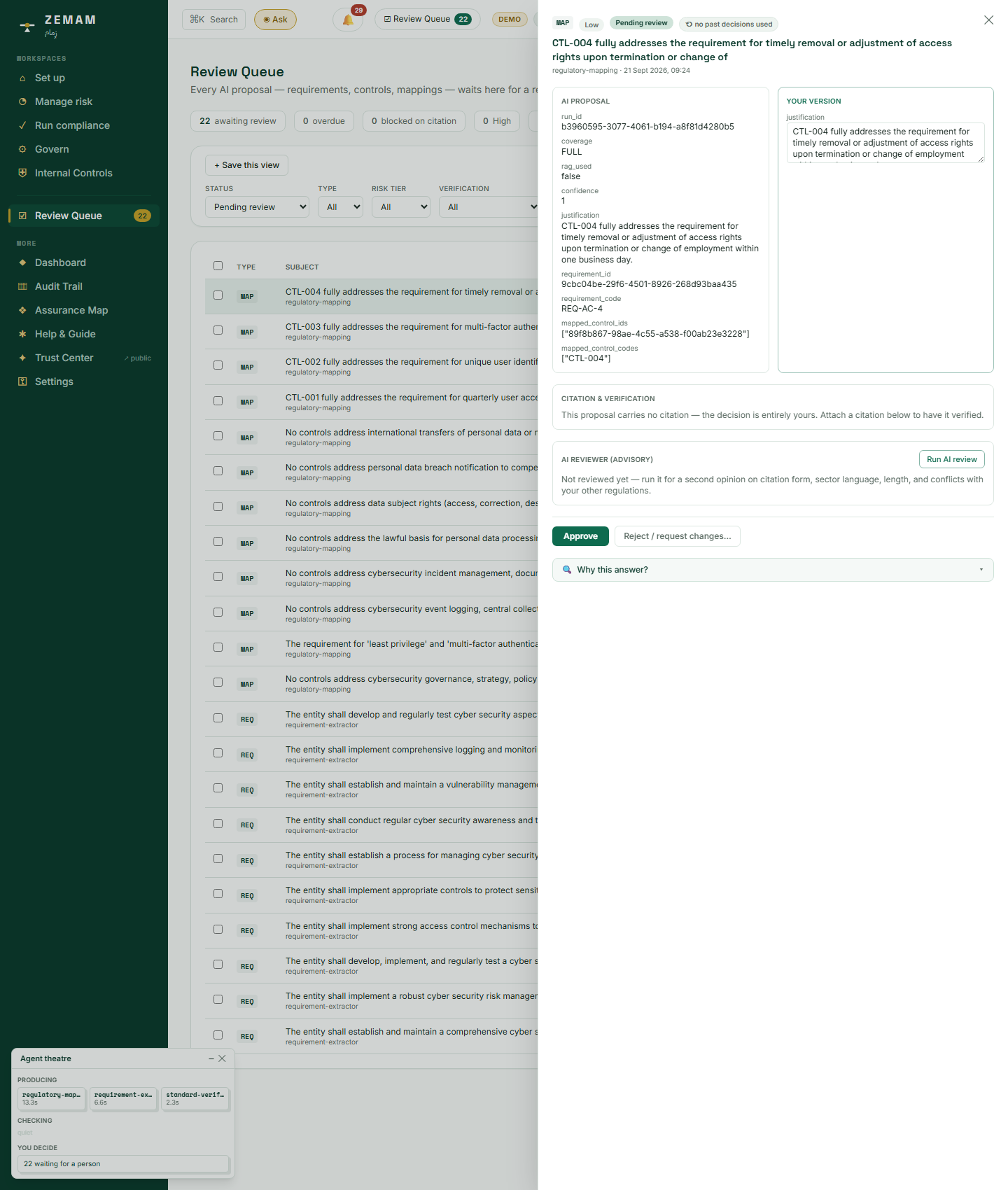
- Open the first pending item. The full AI reasoning is shown: which safeguard it matched to which rule, how confident it is, and a plain-English justification.
- A second panel shows an editable "your version" — Maha can adjust the wording herself before deciding, rather than only accepting or rejecting the AI’s exact words.
- An optional second AI opinion can be requested for a further sanity check before deciding.
- Click Approve.
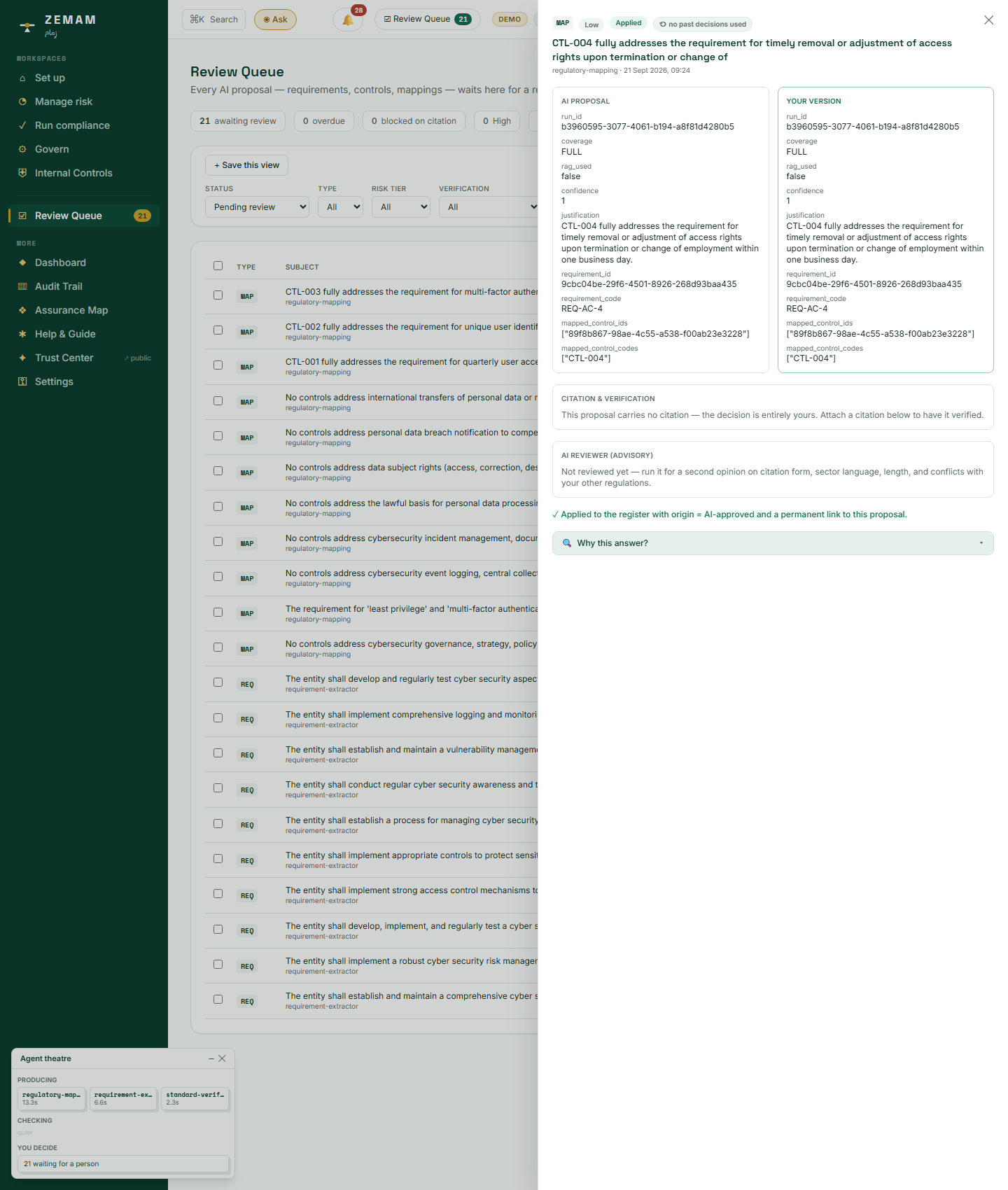
- A second button then appears — "Apply to the register" — because approving something and making it officially real are treated as two separate, both-recorded steps, not one click doing two things silently at once.
- Click it. The item is now permanently part of the company’s official record, carrying a permanent note of exactly which AI draft it came from and who approved it.
A small note on the drawer — "no past decisions used" — shows this is the very first decision of its kind in this company’s account; from here on, the system can start learning the company’s own patterns of past decisions to inform future AI suggestions, without ever skipping the human step.
The AI did all of the original analytical work being reviewed here — reading a rule, finding the safeguard that satisfies it, judging how completely it does so, and writing the justification — but the AI has no ability to make this decision final. Only Maha’s two clicks, approve and then apply, do that.
Chapter 5 — Library Steward: Sharing Proven Work
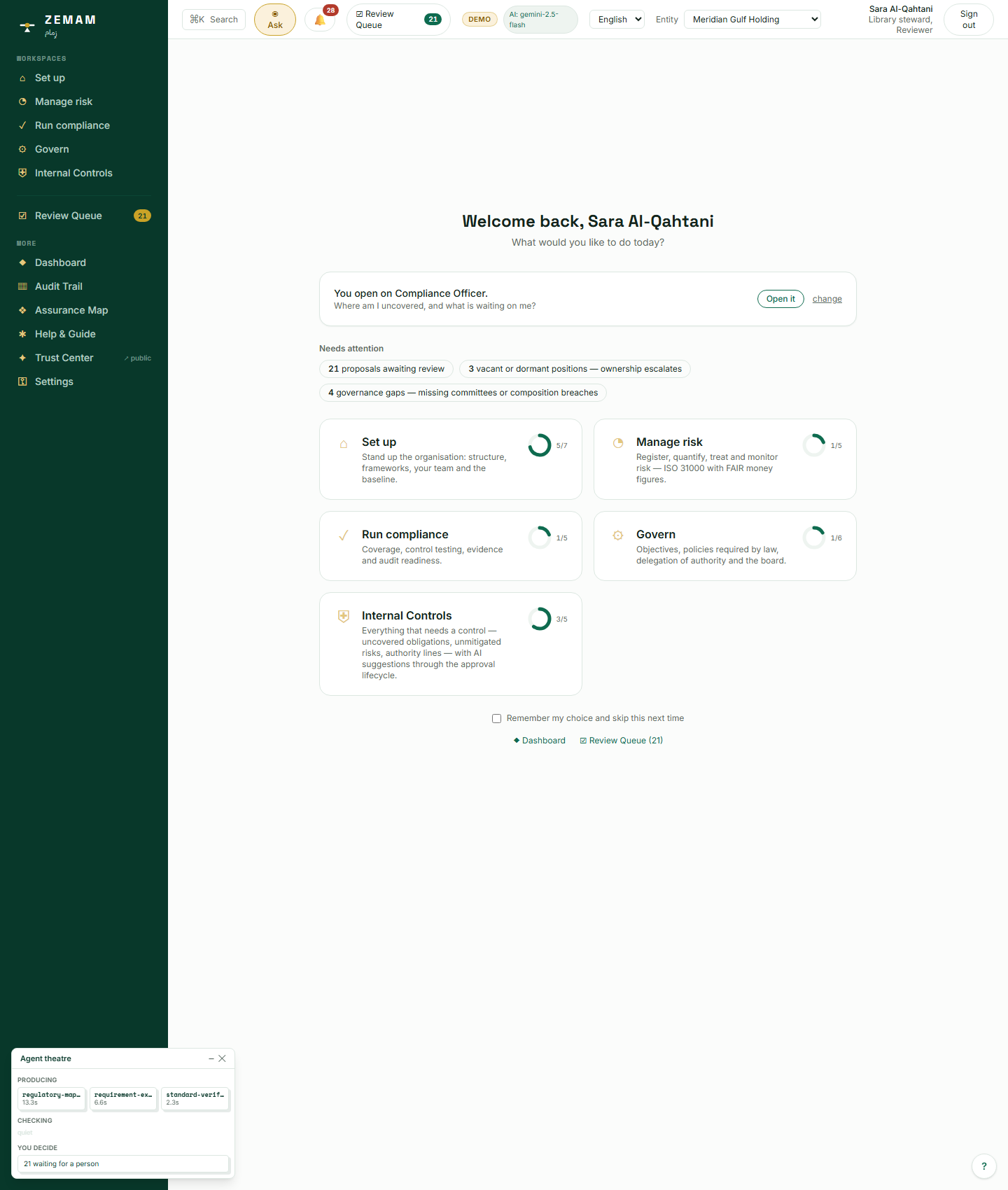
Sara Al-Qahtani has every right Maha has, plus one more: she can take a rule or safeguard that this company has already had properly reviewed and approved, and offer it up to a shared library that other companies — and accredited outside advisory firms — can adopt instead of starting from a blank page.
1Contributing proven work back to a shared library
Writing a well-worded safeguard or rule, and having it properly checked by a second person, is real, billable-grade work. Once one company has done that work and had it approved, there is no genuine business reason every other company facing the same regulation should have to redo it from a blank page — a shared library of already-approved content saves real time without lowering the bar, because nothing reaches it without having passed the same review as anything else in the register.
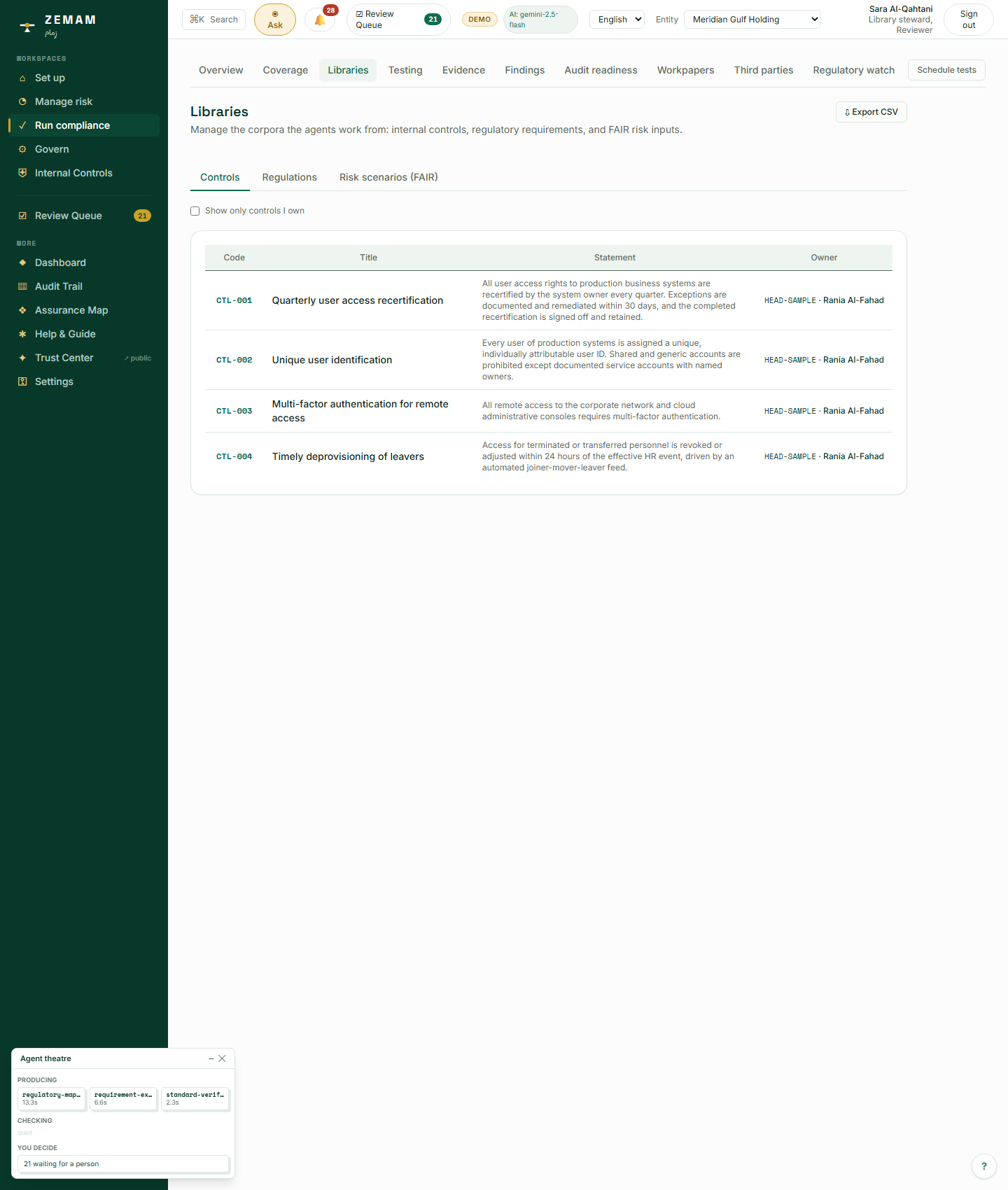
Open the Libraries screen to see the company’s own safeguards, each one now carrying the real, approved connections to the rules it satisfies (the work done back in Chapter 4). From here, Sara can offer any of them up to be shared more widely.
Nothing can be offered to the shared library unless it has already gone through the same two-person approval rule as everything else — there is no separate, lower bar for content that ends up being shared with other companies.
No AI decides what gets contributed to the shared library. That is a deliberate business decision by the library steward, and only ever for content that has already been through the same human review as everything else.
Chapter 6 — Member: The Everyday View
Youssef Nasser works inside one of the group’s companies day to day. His role — called "Member" throughout the system — is the ordinary, everyday seat: no admin rights, no approval rights, just doing his own job within his own part of the business.
1The view most people at the company will actually use
Most people at any real company are not setting up the system or approving board decisions — they are doing their own job and occasionally need to know how their part of the business is doing against its rules and risks. That everyday view has to be built from exactly the same figures as every specialist screen in this guide, not a simplified or delayed copy of them, or a manager and their own team could end up looking at two different pictures of the same company.
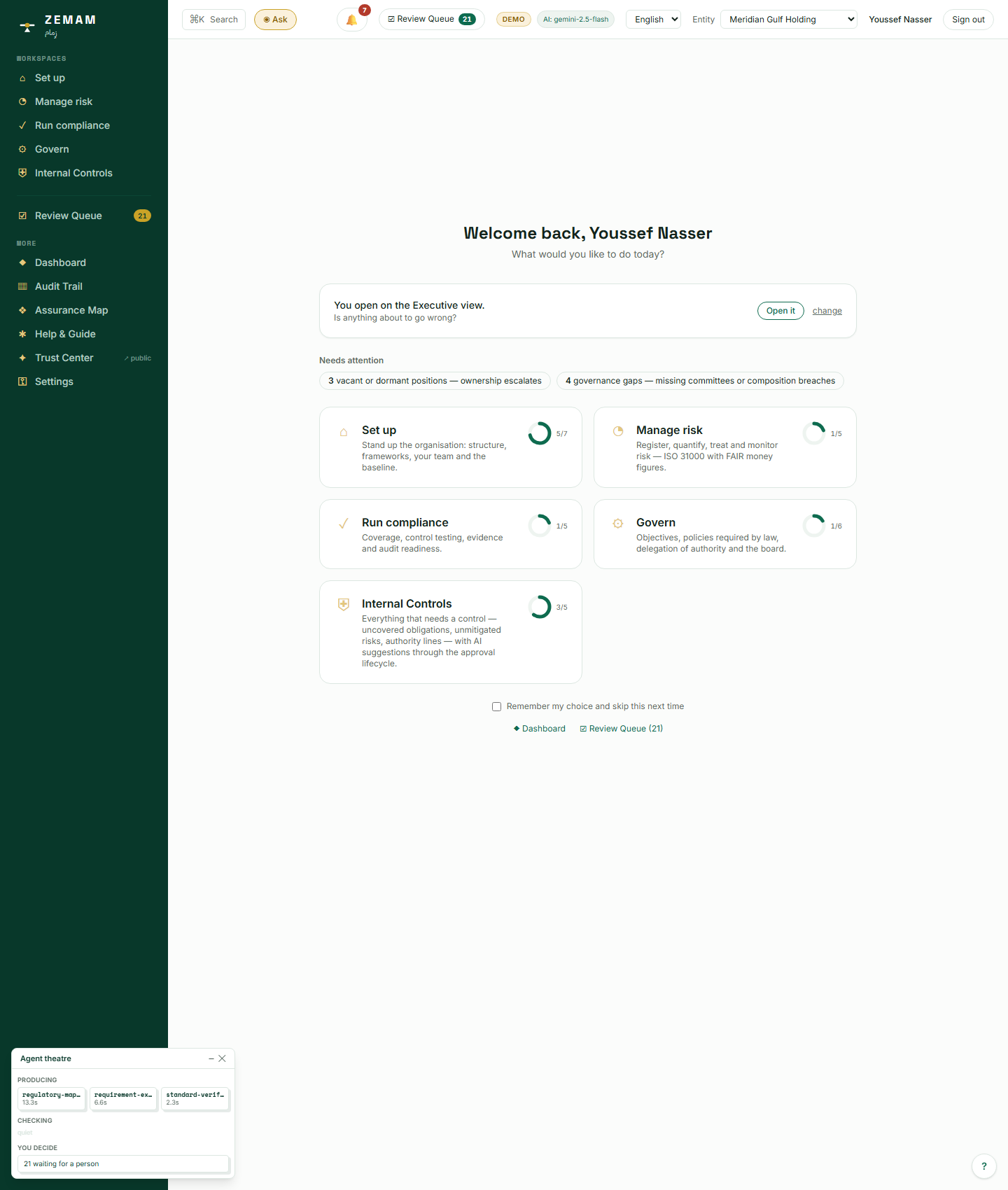
Youssef signs in and sees the same starting screen and the same dashboard everyone else does — the checklist progress and dashboard figures are shared across the whole company, not personalised per person.
Every figure on his dashboard — the size of the shared review inbox, how much of the required rules are actually covered by a safeguard, the ongoing log of AI activity — is read live from the exact same records every earlier chapter built and worked with.
The dashboard itself runs no AI, the same as it does not for Rania in Chapter 1 — it reports, with real timestamps, what earlier AI-assisted steps actually did.
Screen-by-screen reference
Overview
Overview /
Choose today’s job
The welcome screen. It names the view your roles and what your position owns imply — Workspace Admin, Corporate Governance, Internal Audit, Compliance Officer, Risk Manager or Executive — states the one question that view answers, and offers to open there. Beneath it: what is waiting on you, then the five workspaces, all of them, always. A view chooses where you start, never what you may open; change it in Settings. Remembers a workspace choice if you ask it to; the wordmark always brings this screen back. A first sign-in gets a three-step introduction to the rail, the entity picker and Review.
Routes into the five workspaces; shows each one’s getting-started progress.
Dashboard /dashboard
Check the overall posture
Live cross-domain posture: controls passing, coverage, evidence, risks and agent activity.
Read-only view over everything else.
Everything here is computed live from the registers — nothing on this page can be edited, and a number you do not like is changed on the screen that owns it. The entity picker in the top bar scopes every figure; if a card looks empty, check which entity you are on before concluding data is missing.
Set up
Set up /setup
Start the setup checklist
The Set up workspace: getting-started checklist, live setup status, the first-run wizard, and — for admins — the data-sharing switch. Your workspace email server (SMTP), which sends evidence chases and digests from your own domain, is configured in Settings; a pointer here takes you there.
Everything — setup is where structure, frameworks and the team come from.
Organisation /setup/organisation
Build the group structure
Maintain the group hierarchy, each entity profile, and the departments that own risks, controls and findings.
Framework matching reads the profile; departments appear as owners everywhere; the top-bar entity picker scopes every screen.
Add entities from the tree; each carries the profile (country, sector, listed) that framework matching reads — a wrong sector here means wrong regulator suggestions later. Departments created here appear as owners across risks, controls and findings. An entity with children cannot be deleted; move or delete the children first. The top-bar picker decides which entity every other screen shows.
Frameworks /setup/frameworks
Import the frameworks that apply
Discover regulators and frameworks for the active entity; import starter requirements; adopt requirements from the shared Global library other organisations and partners approved; pick AI scout suggestions beyond the catalog to add as verified custom standards.
Libraries (requirements); mapping proposals in the Review Queue.
Suggestions read the ACTIVE entity’s profile — switch entity and the list changes. Import brings starter requirements in directly; Global-library adoptions land the same way and count as your endorsement. An already-imported framework shows a tick instead of a second Import. AI-scout picks beyond the catalog are verified first, then appear under Requirement sources as custom standards.
Requirement sources /setup/sources
Add requirement sources
Import standards, versioned policies and board resolutions; the AI drafts requirements as citation-checked proposals; tag policies with topics. Proprietary standards (ISO, PCI…) unlock for full-text upload once you attest a licence you already hold — quotes stay capped at 25 words.
Libraries (requirements); the mandated-policy matrix.
Upload a file or name a standard; the AI drafts requirements as proposals with citations — nothing enters the library until approved in Review. Policies need a version and a date; a newer version supersedes the old and withdraws its requirements. Proprietary standards (ISO, PCI…) are refused as uploads unless you attest a licence you hold; quotes stay capped at 25 words. If citation checks come back empty for a document, run Rebuild citation index on it.
Users & roles /setup/users
Invite the team and reviewers
Add users and assign roles, each explained in one line — including why a reviewer can never approve their own proposal.
Approval rights across the Review Queue; ownership everywhere.
Roles are explained beside each assignment. The one that matters most: a proposer can never approve their own item, so the workspace needs at least one other approver before maker-checker work can move. Adding a user does not send an invitation email — share the sign-in yourself. Email addresses are unique across the platform.
Expert help /setup/partners
Engage an accredited firm
The expert-help marketplace: browse accredited firms, request an ADVISORY or ASSURANCE engagement, and end one instantly. An independence firewall blocks assurance within 12 months of advisory work by the same firm (and the reverse).
Active engagements let a firm’s consultants work inside your workspace; the shared library’s partner vouches.
Request ADVISORY or ASSURANCE from an accredited firm; your admins can end an engagement instantly. The independence firewall keeps an assurance engagement from going live within 12 months of advisory work by the same firm — in both directions: a conflicted request can never be activated, so it never becomes an active engagement. An active engagement is what lets that firm’s consultants work in your workspace.
Positions /setup/positions
Maintain positions and the structure
Maintain the positions that make up each entity — who reports to whom, who holds each seat and since when — and import the whole structure from a spreadsheet. Ownership of controls, obligations, risks, findings and objectives is a position’s, so a vacant seat is visible and its items escalate up the line instead of disappearing with a person.
Owner pickers across the registers; the attention bell (vacant positions); readiness on this page and on Govern home; the assurance graph (positions, holders, reporting lines); engaged consultants appear as external seats.
Every entity is born with a provisional head. Import a CSV to replace provisional seats with the real structure: the preview names every problem at once (two heads, a loop, an orphan) and nothing is written until the file is clean; positions missing from the file are ended, never deleted, and what they own stays and escalates. Seat a holder by picking an account or typing a name; end a tenure with one date — the seat’s items resolve to the next seat up the line (shown here and on the item). Amendments are effective-dated, so the structure on any past date can be reconstructed. External seats come only from activated engagements and cannot be edited here. Functional lines record oversight and dotted-line reporting, including a line to a parent entity’s committee.
Manage risk
Manage risk /risk
Open the risk workspace
The Manage-risk workspace: heatmap, appetite line, qualitative-vs-money divergence, objectives at risk, the risk wizards, and shared risk templates other organisations and accredited firms have vetted (import one as a starting point; contribute your own from a risk card).
The register; objectives (the chain); the dashboard.
Risk register /risk/register
Populate the risk register
ISO 31000 risk register with FAIR quantification: lifecycle, treatments gated by appetite in scores and money, seeded Monte Carlo analyses reproducible from their stored seed, owners and their feedback, linked controls and residual scores. Switch to the Matrix view (risk × control link states with totals) or the Portfolio view (severity × likelihood, bubble area = FAIR mean loss, hollow ring = no analysis); every code opens the risk’s fact sheet.
Objectives (the chain), Dashboard; control links appear in the libraries and the testing register.
New risks go through the wizard: sizing is POINT scores or a FAIR estimate, and codes are assigned by the platform. Scores multiply severity × likelihood; money figures come only from the FAIR engine — a model never invents a number. Accepting a risk above appetite demands a written rationale and an expiry date, and the re-review date feeds the attention bell. Matrix and Portfolio are views over the same register; a hollow ring means never quantified, not zero. Each card now shows the scores, the treatment, the owning seat and the controls already linked, and only the card you open loads the rest — the lifecycle, the FAIR sizing and the owner’s discussion — so the register stays light however many risks it holds; the open card is in the address, so a link lands on it.
A risk is an event that has not happened yet, its consequence, and the objective it threatens — name all three. Weak: “Cyber attack.” Better: “Ransomware encrypts the Jeddah plant’s production systems, halting output beyond 48 hours and breaching the delivery commitments in the supply contracts.” Risk or issue? If you can put a date on it, it has happened — it belongs in Findings. A register full of issues cannot be scored, because probability is no longer a question. Risk or cause? “Weak passwords” is a cause; the risk is what happens because of it, and the cause is what a control addresses. Score against your appetite, not instinct — accepting above appetite demands a written rationale and an expiry, by design. Where your own risk policy differs from any of this, your policy governs.
Key risk indicators /risk/kris
Track key risk indicators
Key risk indicators: manual readings or metrics derived live from platform state (overdue tests, open findings, overdue proposals, expiring exceptions, divergence), with green/amber/red thresholds computed by the platform.
Early-warning signals for the register and the board pack.
MANUAL indicators take readings you enter; DERIVED ones compute live from platform state (overdue tests, open findings, overdue proposals, expiring waivers, divergence) and cannot be edited — change the underlying state instead. You set the thresholds; the platform computes the green/amber/red status.
Run compliance
Run compliance /comply
Open the compliance workspace
The Run-compliance workspace: posture per framework, drift and attention list, and the compliance checklist.
Coverage, testing, evidence and audit readiness one tab away.
Coverage /comply/coverage
Run a mapping
Map every requirement to controls (FULL / PARTIAL / GAP) and close gaps with approval-gated AI control drafts. A Map view renders the run as framework-grouped tiles coloured by coverage; every tile and code opens the obligation’s fact sheet.
Dashboard coverage, Libraries (approved controls).
Table is the exportable view; Map shows the same run as tiles — the counts always agree. Any tile or code opens that obligation’s fact sheet. Running a mapping does not change the register: it creates proposals in the Review Queue, and re-running while they sit pending adds nothing — the banner names where the output went.
Libraries /comply/controls
Maintain the control library
The system of record: browse, add, edit and delete controls, requirements and risks; review AI suggestions; see version history for controls and risks. Controls carry an accountable position — shown with whoever holds it today — and an owning department; filter to “controls I hold”. A leaver is handled in the organisation structure, not here: end the tenure and their controls escalate up the line, or move a position’s items in one action from Set up → Positions. Every row opens a fact sheet: overview, a Relations explorer over the assurance graph, testing state, and history.
Everything: testing, mapping, risk scoring, dashboards.
Adding a control (or requirement, or risk) follows the workspace approval level — at maker-checker it becomes a proposal, and the screen says so. Deleting a control that has test results is refused: the audit trail owns that history. Owner fields carry a position and a department; there is no reassign action on this screen — the link under the table opens Positions, where a leaver’s items escalate when the tenure ends or move in one action. Every code opens the fact sheet with relations, testing state and history.
A control statement says who does what, how often, and what evidence it leaves. Weak: “Access is reviewed.” Better: “The IT manager reviews privileged access quarterly against the joiners-and-leavers list and files the signed review.” Control or intention? If nobody could test it from evidence, it is an intention. Write the statement so a tester who has never met you knows what PASS looks like. One control, one point of failure — a statement that bundles three activities fails as a whole when one slips.
Testing /comply/schedule
Schedule and run control tests
Test a control at any of the three lines, for design or operating effectiveness; see the three calendars and the combined assurance strip; the wizard sets cadences in bulk. A manual determination lets a named person overrule the AI verdict with a written justification; passing over a failure follows the workspace approval level.
Dashboard, audit readiness, Trust Center, workpapers, findings, tested-residual risk scores.
Pick the line (self-assessment, Internal Control, Internal Audit) and the basis (design or operating effectiveness) — each line keeps its own calendar. The AI test writes its verdict as the control’s result the moment it runs — a FAIL raises a finding automatically. A manual determination by a named person, with a written justification, is how you override it; PASS or FAIL there requires evidence, only INSUFFICIENT stands without. Overruling a FAIL into a PASS follows the workspace approval level, and recording any PASS never closes a finding on its own — closure is a separate action in Findings.
Choose the line by who is giving the assurance, not by who is free. Self-assessment is the owner saying “it works”; Internal Control verifies it; Internal Audit stands apart from both. The combined strip exists because “owner says PASS, audit never looked” is a real and common state. Design asks “would this control work as described?”; operating effectiveness asks “did it actually run, all period?” — a new control earns design testing first. A finding closes only at its raising line or higher — so raising at Internal Audit means Internal Audit must close it.
Evidence /comply/evidence
Upload the evidence
Upload evidence documents (the AI parses them into cited, structured fields) and run evidence requests — ask a named person for evidence by a date, chase overdue ones, link the upload that fulfils each.
Testing, the Ask panel (retrieval), audit readiness.
Upload PDF, PNG or JPG — parsing is automatic, and fields carry page-level citations with confidence. Files are scoped to the ACTIVE entity: an empty list usually means the wrong entity, not missing evidence. Evidence requests chase a named person by a due date (emailed when your workspace email server is set); overdue ones ring the attention bell; link the fulfilling upload to close the request.
Good evidence answers who, what and when on its face. Weak: an undated screenshot of a settings page. Better: the signed quarterly access review naming the reviewer, the quarter, and the exceptions found. Evidence or assertion? An email saying “we reviewed access” asserts; the review itself evidences. If the source carries no date or owner to cite, a tester has nothing to verify — the honest determination is INSUFFICIENT, and a manual determination is where you record it. Keep originals: the platform stores what you upload, and the audit answers from it.
Findings /comply/findings
Work findings to closure
The remediation register: severity, root cause, action plan, owner, due date; closure only by a passing retest at the raising line or higher.
Dashboard posture; the audit story auditors ask for first.
A failed test raises its finding automatically and deduplicates; findings you add by hand follow the workspace approval level. Closure is earned, not clicked: it needs a PASS retest at the raising line or higher, dated after the finding — and recording that retest does not close anything by itself; someone marks the finding CLOSED. Severity, owner and due date drive the attention bell.
A finding is a fact about the past with an owner and a deadline. Weak: “Improve access management.” Better: “Q2 privileged-access review not performed for the Jeddah ERP; 14 leaver accounts remained active — revoke by 15 September and evidence the revocation.” Finding or risk? A finding happened; a risk might. Recording risks here buries real remediation among hypotheticals. Closure is a retest, not a promise — plan the action so the retest can pass at the raising line or higher.
Audit readiness /comply/audit
Prepare the audit view
One page for external auditors: controls with latest results and inline evidence.
Shared with auditors; read-only.
Read-only by design: controls, latest results and inline evidence on one page for an external auditor. Anything that looks wrong here is fixed in Testing or Evidence — not edited here.
Workpapers /comply/workpapers
Generate workpapers
Generate a formatted audit workpaper from a control test result and its evidence.
Audit readiness (documentation auditors read).
Pick a control test result; the workpaper is generated from the stored result and its evidence — figures come from the record, never retyped. Generate again after a newer test and the paper reflects it.
Third parties /comply/third-parties
Screen your third parties
Register your vendors, customers and counterparties and screen them against sanctions and watchlists; every possible match gets a recorded human decision (true match or false positive, with a reason).
The attention bell (undecided matches) and your AML/KYC evidence trail.
Register a counterparty and Screen it; Re-screen all runs the whole register, and every query is metered. A possible match blocks nothing by itself — it waits for a recorded disposition: true match or false positive, with a reason. Undecided matches ring the attention bell. The register chip shows the latest screening’s verdict.
Regulatory watch /comply/watch
Watch your regulators for change
Watch the regulators that bind your entities for change. The platform compares each regulator’s page with its last snapshot; when the text changes, the AI describes the change — instrument, clause, kind — and a person records whether it matters. Drafts for new or amended obligations go to the review queue.
The review queue (draft requirements from detected changes), the attention bell (changes awaiting triage, sources that could not be checked) and the requirements each change touches.
A holding admin switches the watch on, which seeds a source for every regulator the Regulation Finder shows your entities, and adds the workspace’s own AI key under Settings — the watch runs on nothing else, and without a key it is skipped every night and says so. Check now fetches the due sources; the first check of a source records a baseline and raises nothing. A detected change lists its instrument and clause, the requirements it touches, and any draft sent to the review queue; an approver records the triage — material, immaterial or unclear — with a note. Record a change by hand for a circular you heard about first. A source the platform cannot read (a blocked crawler, a moved page) shows as failing until you correct or retire it. Proprietary licensed standards are never watched.
Govern
Govern /govern
Open the govern workspace
The Govern workspace: objectives, mandated-policy gaps, DoA state and the board register at a glance.
The governance story the board asks about.
Objectives /govern/objectives
Define the objectives risks hang from
Define business objectives (COSO categories) and see each one’s full chain: risks → controls → three-line assurance.
Risks link to objectives; the chain is the board-level story.
Objectives sit on the four COSO categories and belong to an entity. The chain view walks objective → risks → controls → three-line assurance; a hole in the chain is the message, not a rendering gap. A risk that points at no objective never appears in any chain — link it from the risk side. The Chain tab draws the objective’s risks, their controls and the three assurance lines as one picture; a line never tested says so.
An objective is an outcome the business wants, specific enough that a risk can threaten it. Weak: “Be compliant.” Better: “Maintain the SFDA licence to operate the KSA food plants, uninterrupted, through 2027.” Objective or activity? “Run quarterly access reviews” is a control activity. Objectives state the destination; risks say what could prevent it; controls answer the risks. If a risk points at no objective, either an objective is missing here or the risk is not worth carrying.
Delegation of Authority /govern/doa
Record who may approve what
The versioned Delegation of Authority matrix: authority lines with thresholds and approvers; instantiate lines as testable controls.
Controls (via instantiation) and the Three Lines testing flow.
Matrices are versioned and immutable once ACTIVE: edit a DRAFT, activate it (holding admins, optionally citing a board resolution), and the old version stays for point-in-time testing. Lines carry thresholds and approvers; Instantiate turns a line into a testable control through the proposal spine. At maker-checker levels new lines wait in Review — and the matrix must still be DRAFT when they apply.
Write authority lines as bands a payments clerk could apply without judgement. Weak: “Large payments need senior approval.” Better: “Payments over SAR 250,000 and up to SAR 1,000,000: CFO approval; above that: CEO plus board notification.” Watch adjacent bands: a gap between them is an approval nobody holds; an overlap is an argument waiting to happen. Thresholds invite splitting — that is why the structuring detector exists. Test against real transactions after every revision.
Authority testing /govern/doa/testing
Test authority at a date
Point-in-time authority testing: who held what authority, at what limit, on any past date — reconstructed from the effective-dated versions. Import a transactions CSV and the structuring detector flags payment patterns that stay just under an ACTIVE line’s threshold.
Audit evidence of authority at any date.
Pick any date and the matrix is reconstructed from effective-dated versions — who held what authority, at which limit. Import a transactions CSV and the structuring detector flags payment patterns that stay just under an ACTIVE line’s threshold, with the pattern and window named.
Policy matrix /govern/policies
Close the policy gaps
The mandatory policy matrix: what the jurisdiction MANDATES versus recommends, against the policies you hold — gaps first. Attestation campaigns run here too: staff attest they have read a policy, with completion tracked to a due date.
Requirement sources (add the missing policy); the govern checklist.
Gaps first: missing MANDATORY policies, then advisories, then covered. Covering a gap means adding the policy under Requirement sources and tagging its topic — the matrix updates itself. Attestation campaigns snapshot their audience at creation and track completion to the due date. A topic chip above the table shows when the view is filtered to one topic — clear it with ✕.
Board register /govern/board
Keep the board register
Board resolutions with a full audit trail and their action items tracked to closure; subsidiary boards roll up to the group view. Generate a board committee pack here — objectives, top risks, appetite breaches, posture, findings, DoA and expiring exceptions, every figure computed by the platform.
The DoA activation ceremony references resolutions; the audit trail.
Resolutions are immutable once recorded; their action items track to closure and overdue ones surface. Subsidiary boards roll up to the group view. Generate committee pack builds the pack from platform-computed figures — objectives, top risks, appetite breaches, posture, findings, DoA and expiring waivers — and stores it like a workpaper. Packs print to PDF from the pack itself, in the reader’s language; the Governance landing shows the latest.
Exceptions & waivers /govern/exceptions
Record waivers with an expiry
The exceptions and waivers register: every deviation from policy or control is recorded with a rationale and a mandatory expiry — no open-ended waivers. Lapsed items flip to EXPIRED automatically.
Audit readiness (auditors ask for this list first); the policy matrix and control posture it qualifies.
Every waiver needs a rationale and an expiry — open-ended waivers are refused, and lapsed items flip to EXPIRED on their own. At maker-checker levels a new exception waits in Review, and the expiry is re-checked when it applies. Auditors ask for this register first; write the rationale for that reader.
A waiver is a decision to carry a known gap for a stated time — not a quiet way to retire a control. Weak: “Password policy waived.” Better: “Password rotation waived for the legacy plant HMI until its Q1 replacement — compensating: isolated network segment and a quarterly manual review.” Name the compensating measure and the real end date; open-ended waivers are refused and expiry is enforced automatically. A waiver that keeps being renewed is a finding wearing a disguise.
Boards & committees /govern/bodies
Keep the boards and committees
Record each entity’s board and its committees, their members with role and class (executive, non-executive, independent, external expert) and dated tenures, and see where the composition breaches the body’s own rule or a recorded mandate — and which required committees are missing.
Resolutions and committee packs on the board register name their body; the attention bell (governance gaps); readiness on Govern home; the assurance graph (members).
One live board per entity; committees sit under it and take a template rule (audit committee: majority independent, independent chair) that the body then owns and edits. Appoint members with a class and, for independent members, a written basis; cease them with a date — March and June memberships are both queryable. Breaches name the rule and its source. Committee mandates say which committees an entity must have: attested library content is published per jurisdiction, and until then you record your own from the articles or charter. A functional line to a parent’s committee satisfies a requirement and is shown as reliance, not a gap.
Internal Controls
Internal Controls /controls
Close the control gaps
The Internal Controls convergence: uncovered obligations, unmitigated risks and un-instantiated authority lines in one view, each with an AI "suggest a control" action. Every suggestion becomes a proposal for human approval — nothing writes the library directly.
CONTROL proposals in the Review Queue; on approval, the control library, coverage and the testing register.
Three parents converge here: uncovered obligations, unmitigated risks, and authority lines without a control. Each Suggest action drafts through the proposal spine — an “Awaiting review” chip means a draft is already pending, and asking again adds nothing until it is decided. Approved controls land in the library and the test calendars pick them up.
Control library /controls/library
Keep the control register honest
Every control this workspace holds, and what each one actually carries: how many obligations it covers and how many risks it mitigates. Both counts read the assurance graph, so a cover that arrived through an approved proposal is included, not just the latest mapping run. This is the control-keeper's view of the catalogue; Run compliance → Controls is the same catalogue seen from the obligation side.
Testing schedules, coverage, risk treatment, and every figure that counts controls.
Start with Carrying nothing. A control attached to no obligation and no risk is either waiting for work that never arrived or duplicating one that did — neither is wrong on its own, because a control can be written before the obligation it will serve, but each one should have a reason you can say out loud. Open a code to see what it is attached to and how it has been tested. The decision to RETIRE a control is not here: it belongs on Coverage, next to the evidence of what would be left uncovered.
Coverage /controls/coverage
Judge whether the control set is enough
Whether the controls this workspace holds are enough, read from BOTH sides. Obligations by how well the latest mapping run covers them; risks by whether any control stands against them at all, and whether a control that PASSED a test has actually moved the score. Run compliance → Coverage asks the same question from the obligation side only.
Control suggestions, the testing schedule, and the residual scores on the risk register.
Read the two tables as one question. A GAP obligation and a risk with no control both mean a control is missing, and the workspace home lists exactly those with a suggest action. The row worth pausing on is the amber one: controls ARE linked, but nothing that passed a test has reduced the score — a risk with two failing controls is not mitigated however well it was designed, and that is a testing problem rather than a design one. Retire last, and only from here: the scan groups controls that overlap and names one to keep, a control carrying a SOLE cover is never offered for removal, and the figures above this panel are what tells you whether anything would be left exposed.
Testing /controls/schedule
Keep every control's assurance current
When each control is next due, in three calendars — because the three activities are different work: self-assessment by the people who run the control, testing by internal control, and review by internal audit. A control can be current on one line and overdue on another. Run compliance → Testing is the same register; here the question is whether the control set is being kept alive, rather than whether an obligation is evidenced.
Assurance status, findings, and the tested residual score of every risk a control stands against.
Work the overdue line first, and read WHICH line is overdue rather than only that something is. Self-assessment slipping is a different problem from internal audit slipping: the first belongs to the control’s own owner, the second to your assurance plan. A newly approved control drops straight in with no schedule until you give it one, including a control instantiated from a delegation-of-authority rule. And a control that is tested on time but never moves a risk score is a separate question — Coverage shows that one; this screen tells you whether it is being tested at all.
More
Partner view /partner-view
Work the approval inbox
The consultant’s landing: proposals awaiting their independent approval and the shared-library vouch queue. Consultants read everything, approve proposals, and never write registers.
The Review Queue; the cross-tenant shared library.
Two queues: proposals in client workspaces awaiting your independent approval (maker-checker counts you as the second person), and shared-library candidates awaiting a vouch. You read everything and write nothing in the registers — they change only through approvals (contributing a risk template or vouching for a library candidate is a library act, not a register write).
Review Queue /review
Review and approve proposals
The trust layer’s front door: at the maker-checker and two-approver levels, every register item — typed in by a person or drafted by AI, across all nine register types (requirements, controls, mappings, risks, objectives, authority lines, findings, exceptions, and manual test determinations that lift a failure) — waits here; approve (maker-checker — never your own), edit, or reject before anything enters a register. AI drafts carry an independent citation verdict, and a missing or shaky citation is no dead end: pick the source document and locator in the drawer and run the citation check on demand. An optional AI reviewer gives an advisory second opinion — citation form, sector language and length, conflicts with your other regulations — and never gates the decision.
All nine registers — every applied row permanently carries its origin (AI-approved or human) and a proposal link.
Filter to Pending to see what needs you. At maker-checker levels and above, you cannot approve your own draft — the database refuses it, and the button says so (a workspace on the lowest approval level lets one person add directly). Verified citations approve straight through; Partially supported and Unverifiable need a written reason and escalate to two approvers; Not supported, Source not found and Locator mismatch cannot be approved at all — fix the citation first with Pick source in the drawer. Approving does not write the register: Apply does, and bulk approve applies each item and names any that fail.
Assurance Map /graph
Read the assurance map
The whole workspace as one picture: objectives on the left, the risks that threaten them, the controls that mitigate, the obligations mapped to those controls, and the evidence supporting them on the right. Click any node to read its relationships as sentences, filter by relationship type, or use the table and CSV export beside the map — the same graph the AI agents read when they answer. Amber chips above the map count register items with no named owner — the accountability gaps.
Read-only over every register; Rebuild projection re-derives the links from your registers and never touches a relationship an agent or a person asserted.
Chips filter by relationship without refetching — the layout holds still and non-matching links dim. Click a node to read its edges as sentences; Replay scrubs the picture through real recorded times, and the layout never moves during a scrub. Rebuild projection re-derives links from the registers and never touches a relationship a person or an agent asserted. Amber chips count register rows with no named owner.
Audit Trail /audit-trail
Trace who changed what
Who changed what and when, across every screen; admins and auditors only.
Compliance record; version history per record opens from the libraries.
Filter by object type and by date range — “to” includes its whole day — and page through the result; every row names the actor, the object and the time. The count is the number of events that MATCH, not the number on screen. Export gives you the whole filtered set rather than the page you are looking at, and if the set is larger than one file will carry, the file’s first lines say so and tell you to narrow the dates. Nothing here is editable — by anyone, including admins. Per-record history opens from each register’s fact sheet; this screen is the cross-cutting view.
Settings /settings
Configure keys, email and approvals
The workspace settings hub: your own AI API keys (encrypted, per user), the workspace email server (admin), the approval level — how many people a new register item needs, from approval-outside-the-system to maker plus two approvers (admin) — and the Usage tab: AI tokens in and out, who funded them, estimated cost, and storage (admin).
AI agents run under your active key; tenant emails send from your server; creates in the nine spine registers obey the approval level (imports, third parties, KRIs and board records stay direct).
My AI Keys holds your personal provider keys (encrypted; only the last four characters ever come back) — your ACTIVE key outranks the workspace picker. Email server is your workspace’s own SMTP: chases and digests send from your domain, and Send test proves it end to end. Approval level (admin) sets how many people a register write needs — one, two (maker-checker) or three; structurally high-risk items escalate above the dial, never below.
Trust Center trust
Share the public status page
A public, sanitised live status page you can share with customers.
Published at /trust/{tenant} — no sign-in required.
Platform
Platform /platform
Operate the platform console
Owner-only cross-tenant console: every workspace with its usage, recent sign-ins, plus levers — create a password user, remove a user’s AI keys, sponsor a workspace with an AI key, or set the system email identity Zemam sends its own mail from. Conversation requests from the marketing site land here too, with a small status ladder. Password owner accounts only.
Read-only over all workspaces; the sponsor key flows into that workspace’s AI like a personal key.
Every lever is audited. Create password users, remove a user’s AI keys, sponsor a workspace with an owner-funded AI key (its usage reports separately from user-funded), review partner applications, and work the marketing-site conversation requests through their status ladder. Set the system email identity — host, account and From address; the password is stored encrypted and shown only by its last four — and send yourself a test. A saved row overrides this deployment’s server settings, which serve when no row is saved; with neither, nothing is sent. The identity provider’s sign-in email is configured at deploy time, not here. Password owner accounts only — social sign-ins are barred by design.
Partners /platform/partners
Accredit partner firms
Owner-only: accredit law firms and consultancies, attach their people (as consultants) to workspaces, record referral and engagement links, set the public-library moderation flag, and approve or remove shared-library content.
The consensus library every workspace draws from (Set up → Frameworks → Global library); partner attribution and the marketplace foundation.
Accredit a firm before its vouches count; screening runs on the firm and its people, and accrediting over an incomplete screening demands an audited override reason. Attach partner users, record referred and engaged links, and set the public-library moderation flag — NOT_REQUIRED, REQUIRED (adds a platform approval) or ONLY.
Closing Notes
Every screen in this manual was produced by the same six accounts working through the real product, in the order shown: an account created, a company named and structured, applicable rules switched on, individual rules drafted by AI and reviewed by a person, a board recorded and staffed, and five different colleagues finding five different, correctly limited views of the exact same underlying company record.
Nothing here was staged after the fact. The AI run times, the size of the shared review inbox, the honestly-stated gaps, and the euro figure on the dashboard are the literal numbers the system produced at the moment each screenshot was taken. Where a step names no AI, that is because none ran — not because it was left out of the description.